LTX Studio: Adding sound effects and exporting the final video

 LTX Studio
Demo summary
The demo shows how to apply automatic sound effects to specific scenes, generate final motion for all clips, and export the completed storyboard as an MP4.
Step-by-step
- Select the specific shots where you want to apply sound effects.
- Click on Auto Sound Effect to apply audio to the selected shots.
- Click Generate Motion on each individual image to create the video clips.
- Review the generated clips and click Regenerate for any outputs that appear unnatural.
- Click on the Voice Over menu at the top to review or change the narrator's voice.
- Click the Share button at the top of the interface.
- Select Export Storyboard to download the final MP4 video.
Options
- Select different voiceover profiles from the drop-down menu if the default is not preferred.
- Regenerate specific clips to eliminate randomness or errors in motion.
Watch out for
- You must manually click Generate Motion for each and every image in the storyboard to process the full video.
Tips
- Review the voiceover before exporting to ensure it matches the tone of your project.
- Regenerate any clips where the motion looks 'weird' or too fast to maintain full control over the output.
Highlights
“that is what is going to give you precise control over your generations and so it will really eliminate any kind of randomness”
All demos from “LTX Studio 101: Ultimate Guide to Creating Stunning Videos”
- 1:350:35Generate images and motion in LTX StudioThe user demonstrates how to generate a still image from a prompt and then use the 'generate motion' feature to turn a static car image into a realistic video clip.LTX Studio· Image to Video
- 2:332:00Creating a new video concept with AIThe creator starts a new project in LTX Studio, selecting 'develop concept with AI' and configuring genre, tone, and voiceover settings based on a prompt generated in ChatGPT.LTX Studio· Script To Video AI Generator
- 5:221:16Customizing video style and character ageThe demo shows how to switch between cinematic, anime, and 3D styles in real-time and how to edit a character's age to change their appearance in LTX Studio.LTX Studio· AI Video Editor
- 6:540:46Training a custom AI actorThe user uploads five personal photos to LTX Studio to train a custom actor model, which is then available to be used consistently across video scenes.LTX Studio· AI Movie Generator
- 9:081:19Editing storyboard shots and frame animationThe video demonstrates how to recreate specific shots in the storyboard and use the frame animation tool to generate a specific ending for a clip using a text prompt.LTX Studio· AI Storyboard Generator
- 10:281:18Camera control and video upscalingThe creator demonstrates applying a 'zoom in' camera movement to a shot and using the 'upscale' feature to remove visual imperfections from the generated video.LTX Studio· AI Video Upscaler
- 12:050:34Using Generative Fill to change backgroundsThe user demonstrates the 'generative fill' tool by masking a character and typing a prompt to replace a hallway background with a dark street corner.LTX Studio· AI Background Generator
- 12:481:20Adding sound effects and exporting the final videoCurrentThe demo shows how to apply automatic sound effects to specific scenes, generate final motion for all clips, and export the completed storyboard as an MP4.LTX Studio· AI Video Editor
- Watch “LTX Studio 101: Ultimate Guide to Creating Stunning Videos” →
AI Video Editor
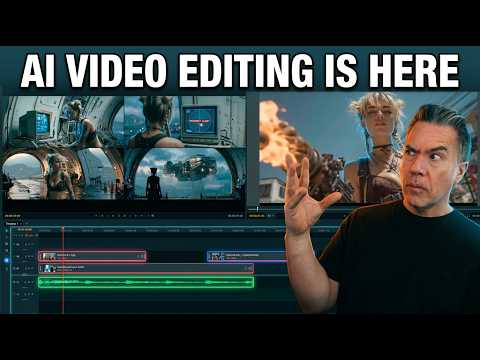 6:591:41Editing timeline and properties in LTX DesktopThe demonstration covers the non-linear editor interface, including clip trimming, color correction properties, adjustment layers, and auto-letterboxing features.Theoretically Media
- 8:581:04Non-destructive shot regeneration on the timelineThe user shows how to right-click a clip on the timeline to 'Regenerate Shot' and toggle between different AI-generated versions of the same prompt non-destructively.Theoretically Media
- 10:361:08Bridging clips with AI 'Fill with Video'The user demonstrates the 'Fill with Video' feature which uses a Gemini API key to generate a transitional bridge between two existing clips on the timeline.Theoretically Media
- 12:330:28Fixing video artifacts with Retake ShotThe demonstration shows using the 'Retake' feature in the Gen Space to fix a specific visual glitch (a character's neck spinning) by regenerating a specific section of the clip.Theoretically Media
 28:152:29Editing video on the LTX Studio timelineThe walkthrough shows the built-in video editor where clips are trimmed, split, and synced to a music track directly within the platform.LTX_io
- 5:221:16Customizing video style and character ageThe demo shows how to switch between cinematic, anime, and 3D styles in real-time and how to edit a character's age to change their appearance in LTX Studio.AI Guy
- 12:481:20Adding sound effects and exporting the final videoCurrentThe demo shows how to apply automatic sound effects to specific scenes, generate final motion for all clips, and export the completed storyboard as an MP4.AI Guy