Gemini: Generate cinematic video with Google Veo 3

 Gemini
Demo summary
The video shows how to activate the video tool in Gemini and enter a detailed prompt to generate a slow-motion shot of chocolate chip cookies using the Veo 3 model.
Step-by-step
- Sign in to the Gemini chat interface with your Google account
- Click the tool titled 'Video' at the bottom of the screen to activate Veo 3
- Enter a detailed prompt in the text field
- Include specific details regarding location, lighting, focus, atmospheric effects, and music
- Click the submit button in the bottom right corner
Options
- Include music in the video generation prompt
Watch out for
- You must sign up for a paid plan to access these AI tools
Tips
- Provide more details in your prompt to ensure the resulting video matches your vision more closely
Highlights
“overall, that's really impressive... it matches my prompt really closely.”
All demos from “Google Veo 3 Tutorial: Make Cinematic AI Videos with Just a Prompt”
- 1:581:20Generate cinematic video with Google Veo 3CurrentThe video shows how to activate the video tool in Gemini and enter a detailed prompt to generate a slow-motion shot of chocolate chip cookies using the Veo 3 model.Gemini· Text to Video
- 3:180:35Add AI narration to videos in Veo 3The user demonstrates how to include specific lines of text in quotes within a prompt to generate a video that includes synchronized AI voice narration.Google AI Studio· Script To Video AI Generator
- 3:530:15Download generated videos from GeminiThe tutorial shows the process of hovering over a generated video and clicking the download icon to save the result as an MP4 file.Gemini· AI Video Generator
- 4:081:13Refine video prompts using Gemini AIThe user demonstrates asking Gemini to write a more descriptive, cinematic prompt for a cookie-baking scene and then using that output to generate a better video.Gemini· Text to Video
- Watch “Google Veo 3 Tutorial: Make Cinematic AI Videos with Just a Prompt” →
Text to Video
 3:340:54Text-to-video generation in Google GeminiThe creator uses Google Veo 3 within the Gemini interface to generate an 8-second video of a scientist speaking specific lines from a text prompt.Tim Harris AI
 2:201:02Generate video with audio in Google Veo 3The user demonstrates entering a text prompt into the Gemini interface to generate an 8-second cinematic video of a cookie including a specific narrated voiceover and sound effects using Google's Veo 3 model.Kevin Stratvert
 14:180:28Generate video using Grok on Gemini Gen AIThe demonstration shows using the Gemini Gen AI platform to generate a video clip using the Grok model for zero credits.Brain Project
 5:341:55Unlimited video generation using Gemini Business (Vidu 1.1)The user demonstrates a trick to get a 30-day free trial of Gemini Business using temporary emails to generate cinematic, watermark-free videos using the Vidu 1.1 model.Everything For All
 1:500:30Generate physics-based video with Gemini OmniThe user demonstrates Gemini Omni's physics understanding by prompting it to create a video of a ceramic teapot falling and shattering on a tile floor.AI Master
 3:180:19Generate video from custom text promptThe user demonstrates Gemini Omni's text-to-video capability by prompting it to show his avatar in a suit eating spaghetti at a restaurant.Paul J Lipsky
 8:041:07Create skydiving video with Google Veo 3.1 via GeminiThe video shows the process of inputting a complex prompt into Gemini to generate an 8-second clip of a grandmother skydiving into a Super Bowl stadium using the Veo 3.1 model.AI Master
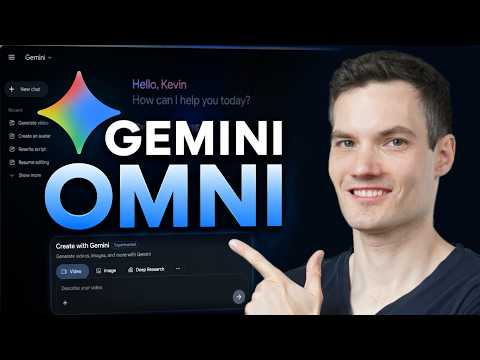 0:461:08Generate video from text with Gemini OmniThe user demonstrates how to navigate to the video icon in Gemini and enter a text prompt to generate a cinematic video of a storefront using the Omni model.Kevin Stratvert
 3:390:32Generate ASMR video with Google Veo 3 via GeminiThe creator demonstrates pasting a prompt into Gemini to use Google Veo 3 for generating a video of slicing crystal fruit with synchronized sound effects.Monetize with AI
- 1:581:20Generate cinematic video with Google Veo 3CurrentThe video shows how to activate the video tool in Gemini and enter a detailed prompt to generate a slow-motion shot of chocolate chip cookies using the Veo 3 model.Kevin Stratvert
- 4:081:13Refine video prompts using Gemini AIThe user demonstrates asking Gemini to write a more descriptive, cinematic prompt for a cookie-baking scene and then using that output to generate a better video.Kevin Stratvert
 0:580:26Accessing Google Veo 3 in GeminiThe user demonstrates how to navigate to the video generation tab within the Gemini Advanced interface to access the Google Veo 3 model.Austin Armstrong