Kling AI: Keyframing with First and Last Frame in Kling 3.0

 Kling AI
Demo summary
The video shows how to upload a starting image and a modified ending frame to guide the AI model's motion path between two specific points.
All demos from “Deep Dive into Cinematic AI Films with Kling 3.0 & 3.0 Omni | Tutorial”
- 2:400:13Generate multi-shot video cuts in Kling 3.0The user demonstrates how to enable the multi-shot toggle in Kling 3.0 to automatically create a cinematic cut in the middle of a generated clip.Kling AI· AI Video Generator
- 6:140:24Keyframing with First and Last Frame in Kling 3.0CurrentThe video shows how to upload a starting image and a modified ending frame to guide the AI model's motion path between two specific points.Kling AI· Image to Video
- 6:560:42Timing prompts with Custom Multi-ShotThe user demonstrates the Custom Multi-Shot feature to time different text prompts across a single generation for specific shot changes.Kling AI· Text to Video
- 7:480:33Creating character Elements in Kling OmniThe demonstration shows how to use the Omni model to create 'Elements' by uploading multiple reference images of a character to maintain consistency.Kling AI· AI Avatar Generator
- 10:170:16Binding elements to Image-to-VideoThe tutorial demonstrates the 'bind elements' tab in the standard image-to-video workflow to ensure a specific character identity is maintained from a source image.Kling AI· Image to Video
- Watch “Deep Dive into Cinematic AI Films with Kling 3.0 & 3.0 Omni | Tutorial” →
Image to Video
 8:032:02Animate images using Kling AIThe video shows the process of uploading a generated image to Kling AI and applying an image-to-video prompt to create a 3D-style animation.Emmanuel Crown
 2:301:24Animate still images using Kling AIThe creator demonstrates the image-to-video feature by uploading photos and using descriptive prompts to control camera movement and environmental animation.Roboverse
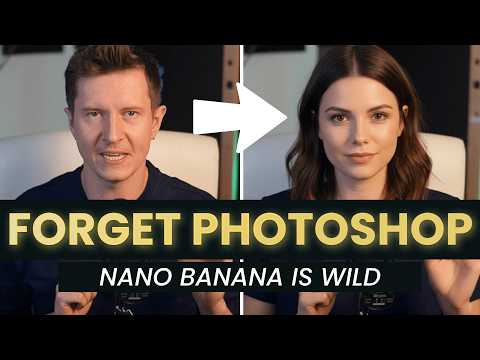 10:361:18Animate images using Kling AI first and last framesThe user demonstrates using Kling 2.1 to animate a character by uploading a starting frame (with a hat) and an ending frame (without a hat) generated in Gemini.AI Samson
 3:321:08Generating consistent character angles with Multi-shotUsing a single image reference, the creator shows how to describe multiple camera angles and actions for a character to generate a consistent 12-second multi-scene video.Dan Kieft
- 15:001:06Image-to-video with start and end framesThe creator demonstrates the image-to-video method by setting a specific start frame and using multi-shot prompts to control the motion and narrative flow.Dan Kieft
 7:360:33Apply image effects in Kling AIThe user uploads a portrait photo to Kling AI's 'effects' tool and selects the 'flyer' template to generate a stylized motion video.@KevinStratvert
 4:200:36Animate AI images into video using Kling AIThe video demonstrates converting a static AI influencer image into a realistic video with natural gestures using the integrated Kling AI 2.1 model.The AI Hustle
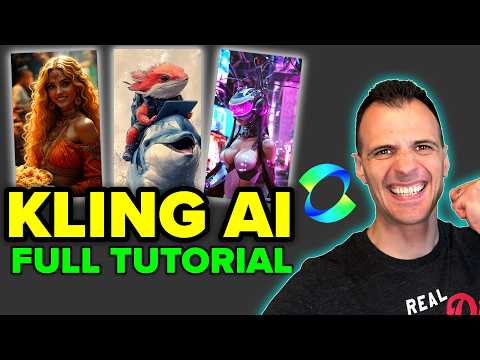 3:371:02Animate images using Kling AI Motion BrushThe video shows how to upload a starting image and use the Motion Brush tool in Kling AI to mask specific areas and define a movement path for birds in a cartoon scene.Caffeinated Blogger
 7:020:35Combine elements into a single videoThe user demonstrates combining two separate images—an empty car interior and a creature—into a single animated video using Kling O1's element feature.Dan Kieft
- 8:000:36Mimic camera motion from a reference videoThe demo illustrates how to upload a video with specific drone movement and apply that exact camera style to a static image using Kling O1.Dan Kieft
 20:400:49Using @ tags for specific image references in Kling O1The creator demonstrates the new tagging feature in the Kling O1 prompt bar, showing how to use the '@' symbol to reference specific uploaded images for character or object placement.Rourke Heath
 17:020:28Motion transfer with Kling AIThe creator shows how to use Kling Motion Transfer to map the movements from a real 'driving video' of himself onto a static AI influencer image.Sirio