Kling AI: Generate multi-shot video cuts in Kling 3.0

 Kling AI
Demo summary
The user demonstrates how to enable the multi-shot toggle in Kling 3.0 to automatically create a cinematic cut in the middle of a generated clip.
Step-by-step
- Enter your base prompt into the generator
- Enable the Multi-shot toggle
- Click the run button to generate the video
All demos from “Deep Dive into Cinematic AI Films with Kling 3.0 & 3.0 Omni | Tutorial”
- 2:400:13Generate multi-shot video cuts in Kling 3.0CurrentThe user demonstrates how to enable the multi-shot toggle in Kling 3.0 to automatically create a cinematic cut in the middle of a generated clip.Kling AI· AI Video Generator
- 6:560:42Timing prompts with Custom Multi-ShotThe user demonstrates the Custom Multi-Shot feature to time different text prompts across a single generation for specific shot changes.Kling AI· Text to Video
- 7:480:33Creating character Elements in Kling OmniThe demonstration shows how to use the Omni model to create 'Elements' by uploading multiple reference images of a character to maintain consistency.Kling AI· AI Avatar Generator
- 10:170:16Binding elements to Image-to-VideoThe tutorial demonstrates the 'bind elements' tab in the standard image-to-video workflow to ensure a specific character identity is maintained from a source image.Kling AI· Image to Video
- Watch “Deep Dive into Cinematic AI Films with Kling 3.0 & 3.0 Omni | Tutorial” →
AI Video Generator
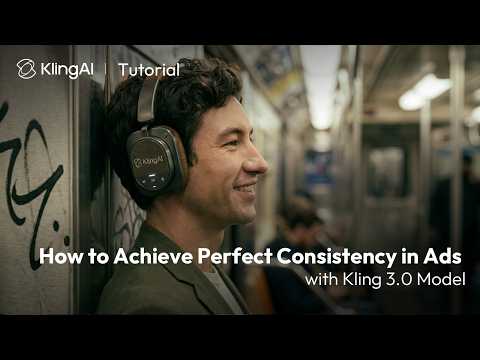 0:240:26Maintain subject consistency in Kling 3.0The video demonstrates how to use the 'bind elements' and 'AI multi-shot' features in Kling 3.0 to keep products and characters consistent by uploading start/end frames and multiple renders.Kling AI
- 0:500:17Keep logos and text consistent with Kling 3.0The user shows how to maintain readable logos on products by binding the subject and using specific prompt instructions within the Kling AI interface.Kling AI
 4:280:42Generate AI video with sound effectsThe user demonstrates enabling the 'Audio' toggle in the desktop site version of the tool to generate a video that includes synchronized AI-generated sound effects.Vikash Ai Pro
 - 2:400:13Generate multi-shot video cuts in Kling 3.0CurrentThe user demonstrates how to enable the multi-shot toggle in Kling 3.0 to automatically create a cinematic cut in the middle of a generated clip.Kling AI
 4:391:12Reviewing Kling AI video generation resultsThe creator reviews the final video outputs for both the text-to-video helicopter prompt and the animated bird image, evaluating the motion quality and visual consistency.Caffeinated Blogger