Kling AI: Mimic camera motion from a reference video

 Kling AI
Demo summary
The demo illustrates how to upload a video with specific drone movement and apply that exact camera style to a static image using Kling O1.
Step-by-step
- Select the Video to Video feature in Kling O1
- Upload the reference video containing the desired camera motion
- Upload the static image to be used as the first frame
- Enter a prompt specifying to apply the camera movement from the video to the image
- Generate the video
Tips
- Specify in your prompt that the output should not be a time lapse to maintain the intended motion quality
Highlights
“Still I'm not too amazed by this.”
All demos from “NEW AI Video Generator Kling O1 Redefines AI Filmmaking”
- 1:231:00Replace objects in video with Kling O1The creator demonstrates how to upload a video of a car drifting and use a reference image of a Porsche to replace the original car using Kling O1's video-to-video feature.Kling AI· Video to Video
- 3:220:30Swap characters in a video using Kling O1The user shows how to replace a person in a video with a different character by uploading a reference image and prompting Kling O1 to change the subject while maintaining camera motion.Kling AI· Video to Video
- 4:290:37Predict and generate the next sceneThe demo shows how to use an original video and a reference image of a logo to have Kling O1 generate a subsequent shot that follows the initial scene's context.Kling AI· Video to Video
- 5:060:36Change camera angles with video-to-videoThe creator demonstrates changing a static shot of a person in a car to an overhead tracking shot of a Porsche by providing a reference image and specific camera instructions to Kling O1.Kling AI· Video to Video
- 7:020:35Combine elements into a single videoThe user demonstrates combining two separate images—an empty car interior and a creature—into a single animated video using Kling O1's element feature.Kling AI· Image to Video
- 8:000:36Mimic camera motion from a reference videoCurrentThe demo illustrates how to upload a video with specific drone movement and apply that exact camera style to a static image using Kling O1.Kling AI· Image to Video
- Watch “NEW AI Video Generator Kling O1 Redefines AI Filmmaking” →
Image to Video
 7:291:18Animate transitions with Kling 2.1The creator demonstrates the image-to-video process using Kling 2.1, setting a start frame of a unicorn and an end frame of a hunter to create a seamless 10-second zooming transition.Dan Kieft
 15:090:34Keyframe transitions with Kling AIThe creator demonstrates uploading a starting illustration and an end photo into Kling AI to generate a seamless transition between two frames.Tao Prompts
 7:551:21Convert images to video with Kling AIThe demonstration shows uploading a static image of an owl and using a text prompt to animate it into a slow-motion flight sequence.Jason Gandy
 2:200:36Animate a reference image with Kling 3.0The narrator demonstrates image-to-video by uploading a reference image of a man and entering a prompt for him to walk towards a dragon using the Kling 3.0 model.Tao Prompts
 7:080:29Animate images with Kling AI and sound effectsThe user demonstrates uploading an image to Kling AI, pasting an animation prompt, and checking the box for built-in sound effects to generate a final ASMR clip.Monetize with AI
 4:030:39Animate scenes with Kling 2.6The video shows the process of using the 'image to video' feature, uploading a panel as a start frame, and applying a camera movement prompt using the Kling 2.6 model.Mira AI
 2:471:07Animate images into ASMR videos with Kling AIThe user demonstrates uploading an image to Kling AI, using the Deep Seek tool to refine the prompt, and generating a video with synchronized AI sound.AI Century
 10:041:33Animate images using Kling and KlingThe video shows how to take a generated image into the video tab, select a model like Kling, and use ChatGPT-generated video prompts to create a 5-10 second cinematic clip.Dan Kieft
 6:580:58Generate video with Kling 3 Omni using referencesThe user demonstrates using Kling 3 Omni's 'Text with reference' and 'multi shot' features, uploading the previously created 3D world images as visual guides for video generation.AI Video School
 3:321:08Generating consistent character angles with Multi-shotUsing a single image reference, the creator shows how to describe multiple camera angles and actions for a character to generate a consistent 12-second multi-scene video.Dan Kieft
- 15:001:06Image-to-video with start and end framesThe creator demonstrates the image-to-video method by setting a specific start frame and using multi-shot prompts to control the motion and narrative flow.Dan Kieft
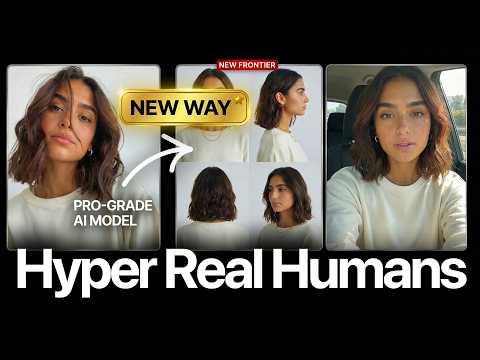 17:020:28Motion transfer with Kling AIThe creator shows how to use Kling Motion Transfer to map the movements from a real 'driving video' of himself onto a static AI influencer image.Sirio