Kling AI: Animate architectural renders with Kling Pro

 Kling AI
Demo summary
The user takes a generated architectural image and uses the Kling Pro video tool to create a 5-second animation featuring falling cherry blossoms and a camera zoom.
Step-by-step
- Select the Image to Video tool at the top of the interface
- Click Select to open the image library and choose a generated image to serve as the starting keyframe
- Enter a text prompt describing the desired animation and movement
- Select the aspect ratio to match your source image
- Choose a duration of 5 seconds or 10 seconds
- Click Run to generate the video
Options
- Upload a custom image instead of using the internal library
- Select Landscape or Square (1:1) aspect ratios
- Toggle between 5-second and 10-second video durations
Watch out for
- Changing the aspect ratio from the source image requires the AI to inpaint the edges to match the new resolution
- 10-second videos have a different pricing/token cost than 5-second videos
- Video generation takes longer than image generation
Tips
- Match the video resolution to the resolution of your starter image for better quality
- Run at least two generations for each prompt to determine if a result is due to the prompt or a random seed
- If multiple generations fail to show a specific element, refine the prompt to be more specific (e.g., 'falling cherry blossoms')
Highlights
“now that we have a nice image that we like we can come over here to our next tool”
Image to Video
 7:291:18Animate transitions with Kling 2.1The creator demonstrates the image-to-video process using Kling 2.1, setting a start frame of a unicorn and an end frame of a hunter to create a seamless 10-second zooming transition.Dan Kieft
 15:090:34Keyframe transitions with Kling AIThe creator demonstrates uploading a starting illustration and an end photo into Kling AI to generate a seamless transition between two frames.Tao Prompts
 7:551:21Convert images to video with Kling AIThe demonstration shows uploading a static image of an owl and using a text prompt to animate it into a slow-motion flight sequence.Jason Gandy
 2:200:36Animate a reference image with Kling 3.0The narrator demonstrates image-to-video by uploading a reference image of a man and entering a prompt for him to walk towards a dragon using the Kling 3.0 model.Tao Prompts
 7:080:29Animate images with Kling AI and sound effectsThe user demonstrates uploading an image to Kling AI, pasting an animation prompt, and checking the box for built-in sound effects to generate a final ASMR clip.Monetize with AI
 4:030:39Animate scenes with Kling 2.6The video shows the process of using the 'image to video' feature, uploading a panel as a start frame, and applying a camera movement prompt using the Kling 2.6 model.Mira AI
 2:471:07Animate images into ASMR videos with Kling AIThe user demonstrates uploading an image to Kling AI, using the Deep Seek tool to refine the prompt, and generating a video with synchronized AI sound.AI Century
 10:041:33Animate images using Kling and KlingThe video shows how to take a generated image into the video tab, select a model like Kling, and use ChatGPT-generated video prompts to create a 5-10 second cinematic clip.Dan Kieft
 6:580:58Generate video with Kling 3 Omni using referencesThe user demonstrates using Kling 3 Omni's 'Text with reference' and 'multi shot' features, uploading the previously created 3D world images as visual guides for video generation.AI Video School
 3:321:08Generating consistent character angles with Multi-shotUsing a single image reference, the creator shows how to describe multiple camera angles and actions for a character to generate a consistent 12-second multi-scene video.Dan Kieft
- 15:001:06Image-to-video with start and end framesThe creator demonstrates the image-to-video method by setting a specific start frame and using multi-shot prompts to control the motion and narrative flow.Dan Kieft
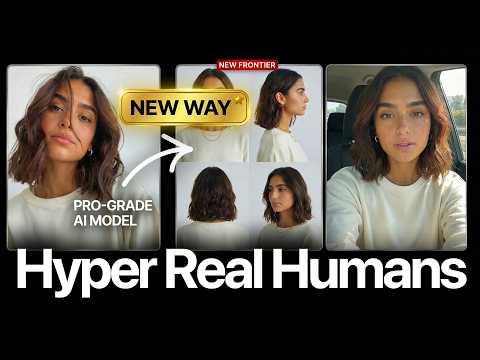 17:020:28Motion transfer with Kling AIThe creator shows how to use Kling Motion Transfer to map the movements from a real 'driving video' of himself onto a static AI influencer image.Sirio