Kling AI: Connecting Start and End Frames in Kling 3.0

 Kling AI
Demo summary
The demo shows how to provide Kling 3.0 with two separate images (a start and end frame) to have the AI interpolate the motion between them without a text prompt.
Step-by-step
- Upload the first image to the top frame slot to set the video start
- Upload the second image to the bottom frame slot to set the video end
- Leave the text prompt field empty
- Click Generate
Highlights
“That's easy mode.”
All demos from “How I Create AI Videos in 8 Minutes (Kling 3.0 Tutorial)”
- 1:030:24Basic Image-to-Video Generation with Kling 3.0The creator demonstrates the 'easy mode' of Kling 3.0 by uploading a single image of a dog and generating a motion video within the Higgsfield interface.Higgsfield· Image to Video
- 1:270:31Connecting Start and End Frames in Kling 3.0CurrentThe demo shows how to provide Kling 3.0 with two separate images (a start and end frame) to have the AI interpolate the motion between them without a text prompt.Kling AI· Image to Video
- 3:290:56Directing Multi-Shot AI VideosThe creator walks through the 'Multi-shot' feature in Higgsfield, showing how to input custom prompts for five distinct shots to create a cohesive narrative scene.Higgsfield· AI Movie Generator
- 4:361:24Adding Character Elements to AI ScenesThe tutorial demonstrates how to use the 'Elements' feature to upload character references (photos of the creator) and insert them into a specific shot of an AI-generated video using the @ mention system.Kling AI· AI Animation Generator
- Watch “How I Create AI Videos in 8 Minutes (Kling 3.0 Tutorial)” →

Image to Video
 7:291:18Animate transitions with Kling 2.1The creator demonstrates the image-to-video process using Kling 2.1, setting a start frame of a unicorn and an end frame of a hunter to create a seamless 10-second zooming transition.Dan Kieft
 15:090:34Keyframe transitions with Kling AIThe creator demonstrates uploading a starting illustration and an end photo into Kling AI to generate a seamless transition between two frames.Tao Prompts
 7:551:21Convert images to video with Kling AIThe demonstration shows uploading a static image of an owl and using a text prompt to animate it into a slow-motion flight sequence.Jason Gandy
 2:200:36Animate a reference image with Kling 3.0The narrator demonstrates image-to-video by uploading a reference image of a man and entering a prompt for him to walk towards a dragon using the Kling 3.0 model.Tao Prompts
 7:080:29Animate images with Kling AI and sound effectsThe user demonstrates uploading an image to Kling AI, pasting an animation prompt, and checking the box for built-in sound effects to generate a final ASMR clip.Monetize with AI
 4:030:39Animate scenes with Kling 2.6The video shows the process of using the 'image to video' feature, uploading a panel as a start frame, and applying a camera movement prompt using the Kling 2.6 model.Mira AI
 2:471:07Animate images into ASMR videos with Kling AIThe user demonstrates uploading an image to Kling AI, using the Deep Seek tool to refine the prompt, and generating a video with synchronized AI sound.AI Century
 10:041:33Animate images using Kling and KlingThe video shows how to take a generated image into the video tab, select a model like Kling, and use ChatGPT-generated video prompts to create a 5-10 second cinematic clip.Dan Kieft
 6:580:58Generate video with Kling 3 Omni using referencesThe user demonstrates using Kling 3 Omni's 'Text with reference' and 'multi shot' features, uploading the previously created 3D world images as visual guides for video generation.AI Video School
 3:321:08Generating consistent character angles with Multi-shotUsing a single image reference, the creator shows how to describe multiple camera angles and actions for a character to generate a consistent 12-second multi-scene video.Dan Kieft
- 15:001:06Image-to-video with start and end framesThe creator demonstrates the image-to-video method by setting a specific start frame and using multi-shot prompts to control the motion and narrative flow.Dan Kieft
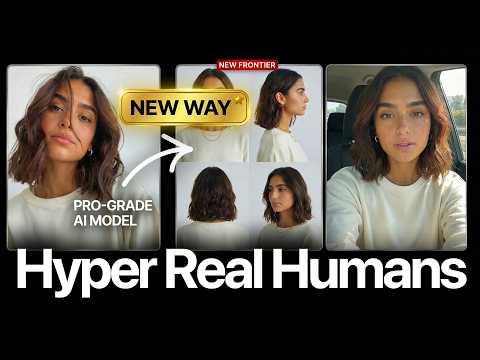 17:020:28Motion transfer with Kling AIThe creator shows how to use Kling Motion Transfer to map the movements from a real 'driving video' of himself onto a static AI influencer image.Sirio