Apply AI motion control with Kling AI

 Kling AI
Demo summary
The video demonstrates using Kling AI (referred to as cleaningai.com in transcript) to map the motion from a source video onto a static AI-generated image.
Step-by-step
- Select the AI video generator on the left-hand side of the platform.
- Navigate to the Motion Control tab.
- Upload the source video containing the desired motion into the left box.
- Upload the static image of the subject into the second box.
- Check the box for Character orientation matches video.
- Select 720p quality and choose whether to preserve the source audio.
- Click to generate the video output.
Options
- Enter a text prompt (though results may not vary)
- Preserve audio from the source clip
- Select higher quality outputs beyond 720p
Tips
- Use Canva's magic erasing tool to remove watermarks from AI-generated images before uploading.
- Stick with 720p quality to conserve your credits.
- Select only one output at a time to save resources.
- Skip entering a text prompt as it doesn't significantly change the motion control results.
Highlights
“it looks insanely realistic and it's pretty insane how it's copying the exact same movements”
All demos from “how i make ads with AI motion control.”
- 4:340:24Generate product-specific images with Google GeminiThe creator uses Google Gemini Pro to generate a new image of a model wearing a specific dress by providing a reference frame and a product screenshot.Gemini· AI Product Photography
- 5:171:07Apply AI motion control with Kling AICurrentThe video demonstrates using Kling AI (referred to as cleaningai.com in transcript) to map the motion from a source video onto a static AI-generated image.Kling AI· Image to Video
- Watch “how i make ads with AI motion control.” →

Image to Video
 7:291:18Animate transitions with Kling 2.1The creator demonstrates the image-to-video process using Kling 2.1, setting a start frame of a unicorn and an end frame of a hunter to create a seamless 10-second zooming transition.Dan Kieft
 15:090:34Keyframe transitions with Kling AIThe creator demonstrates uploading a starting illustration and an end photo into Kling AI to generate a seamless transition between two frames.Tao Prompts
 7:551:21Convert images to video with Kling AIThe demonstration shows uploading a static image of an owl and using a text prompt to animate it into a slow-motion flight sequence.Jason Gandy
 2:200:36Animate a reference image with Kling 3.0The narrator demonstrates image-to-video by uploading a reference image of a man and entering a prompt for him to walk towards a dragon using the Kling 3.0 model.Tao Prompts
 7:080:29Animate images with Kling AI and sound effectsThe user demonstrates uploading an image to Kling AI, pasting an animation prompt, and checking the box for built-in sound effects to generate a final ASMR clip.Monetize with AI
 4:030:39Animate scenes with Kling 2.6The video shows the process of using the 'image to video' feature, uploading a panel as a start frame, and applying a camera movement prompt using the Kling 2.6 model.Mira AI
 2:471:07Animate images into ASMR videos with Kling AIThe user demonstrates uploading an image to Kling AI, using the Deep Seek tool to refine the prompt, and generating a video with synchronized AI sound.AI Century
 10:041:33Animate images using Kling and KlingThe video shows how to take a generated image into the video tab, select a model like Kling, and use ChatGPT-generated video prompts to create a 5-10 second cinematic clip.Dan Kieft
 6:580:58Generate video with Kling 3 Omni using referencesThe user demonstrates using Kling 3 Omni's 'Text with reference' and 'multi shot' features, uploading the previously created 3D world images as visual guides for video generation.AI Video School
 3:321:08Generating consistent character angles with Multi-shotUsing a single image reference, the creator shows how to describe multiple camera angles and actions for a character to generate a consistent 12-second multi-scene video.Dan Kieft
- 15:001:06Image-to-video with start and end framesThe creator demonstrates the image-to-video method by setting a specific start frame and using multi-shot prompts to control the motion and narrative flow.Dan Kieft
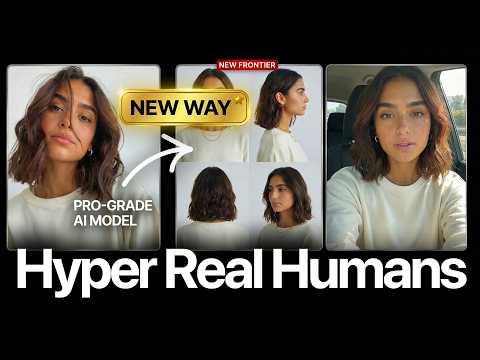 17:020:28Motion transfer with Kling AIThe creator shows how to use Kling Motion Transfer to map the movements from a real 'driving video' of himself onto a static AI influencer image.Sirio