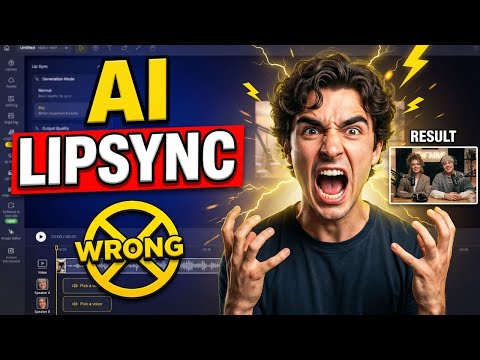
Multi-character lip sync in Dzine AI
 DZine AI
Demo summary
The demonstration shows how to assign voices to specific characters, arrange audio clips on a timeline to prevent overlapping dialogue, and generate automated facial movements.
Step-by-step
- Scroll down and click Lip Sync
- Select the first character to speak
- Choose a voice source by using Text to Speech or uploading a voiceover file
- Generate the first voice and wait for it to finish completely
- Add the second voice to the timeline
- Drag the second voice clip to the end of the first one to prevent overlapping
- Fine-tune timing by adding pauses or adjusting the flow
- Confirm the sequence to generate the automated facial movements
Options
- Use built-in Text to Speech voices
- Upload your own pre-recorded audio voiceover
Watch out for
- Do not leave voice clips overlapping or the scene will feel amateur
- Wait for the first voice to finish generating completely before adding the second
Tips
- Add small pauses to let reactions breathe so the conversation feels natural instead of rushed
- Prioritize the order of speakers because timing is the most critical element in multi-character animation
Highlights
“Design AI automatically matches facial movement to the audio, which saves you an insane amount of time compared to older tools.”
All demos from “Dzine AI Tutorial: From Text to Image to Lip Sync”
- 0:500:59Generate base images with Dzine AIThe user demonstrates how to use the text-to-image tool in Dzine AI, selecting the 'Nano Banana Pro' style and setting canvas aspect ratios for a base scene.DZine AI· Text to Image
- 1:530:33Edit scenes using Dzine AI Chat EditorThe video shows the Dzine AI chat editor being used to modify character poses, adjust actions, and swap backgrounds without regenerating the entire image.DZine AI· AI Inpainting
- 3:021:08Multi-character lip sync in Dzine AICurrentThe demonstration shows how to assign voices to specific characters, arrange audio clips on a timeline to prevent overlapping dialogue, and generate automated facial movements.DZine AI· AI Lip Sync Generator
- 4:100:16Enhance animation with Dzine AI Pro ModeThe user activates 'Pro Mode' in Dzine AI to add natural head motion, body movement, and expressive gestures to the lip-synced characters.DZine AI· AI Animation Generator
- Watch “Dzine AI Tutorial: From Text to Image to Lip Sync” →
AI Lip Sync Generator
 6:050:51Multi-character lip-syncing in Dzine AIThe demonstrator walks through marking faces manually, uploading audio, and applying lip-sync to two different characters in a single project.AI Madame
 4:251:38Apply AI lip sync and voice to characterThe user demonstrates using Dzine AI's lip sync tool to match a generated voice and script to the character's facial movements in 1080p resolution.Daniel | Tech & Data
 8:181:58Lip-syncing video with LipSync ProThe presenter shows how to use LipSync Pro within Dzine to align an uploaded 11 Labs audio file with a generated video clip, including trimming and timing the speech to character movements.Dzine
 4:581:37Animate characters with AI lip-sync and voiceoverThe user demonstrates the lip-sync tool by uploading an image, selecting a face, and using text-to-speech to generate a talking video of the character.Ai with Gary
 11:030:49Manual face detection for lip-sync in DzineThe user demonstrates how to manually mark faces in a video frame to ensure the lip-sync tool correctly identifies characters for animation.Blog With Ben
- 15:171:36Multi-character lip-sync and timeline editingThe user demonstrates how to arrange multiple audio clips on a timeline to prevent characters from talking over each other and then generates the final lip-synced video.Blog With Ben
- 3:021:08Multi-character lip sync in Dzine AICurrentThe demonstration shows how to assign voices to specific characters, arrange audio clips on a timeline to prevent overlapping dialogue, and generate automated facial movements.AiTLDR
 5:445:18Animate a still photo with AI Lip Sync in DZINEThe demo shows how to select a face in a generated image, choose an AI voice, and apply text-to-speech to create a lip-synced animation.Blog With Ben
- 11:023:48Multi-character lip sync and timeline editing in DZINEThe user demonstrates applying lip-sync to two different subjects in one image and using the timeline to sequence their dialogue so they don't speak over each other.Blog With Ben
 11:091:01Lip-sync AI characters in Dzine AIA demonstration of the lip-sync feature where the user selects a face, picks a voice (Joey), and generates a talking head video from a prompt.Moe Lueker
 6:090:41Generate and preview multi-character lip syncThe video shows the process of switching to Pro Mode in Dzine, initiating the generation task, and reviewing the final animated result where four characters speak in sync.Daniel | Tech & Data
 4:502:03Animate character dialogue in DzineA walkthrough of using Dzine's lip-sync feature, including manual face selection, audio uploading, and trimming the timeline for precise synchronization.Tao Prompts