Enhance animation with Dzine AI Pro Mode
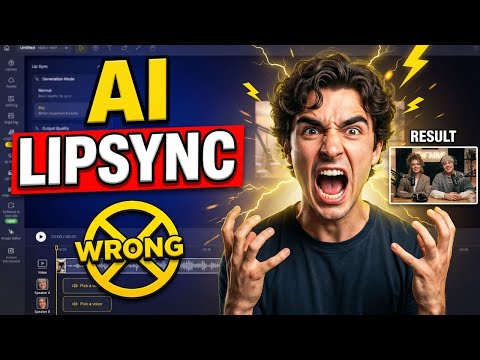
 DZine AI
Demo summary
The user activates 'Pro Mode' in Dzine AI to add natural head motion, body movement, and expressive gestures to the lip-synced characters.
Step-by-step
- Switch to Pro Mode
- Click Generate again to apply the movement enhancements
Watch out for
- Pro Mode is required to add body movement, head motion, and gestures; without it, characters remain stiff
Highlights
“This is the moment where the animation stops”
All demos from “Dzine AI Tutorial: From Text to Image to Lip Sync”
- 0:500:59Generate base images with Dzine AIThe user demonstrates how to use the text-to-image tool in Dzine AI, selecting the 'Nano Banana Pro' style and setting canvas aspect ratios for a base scene.DZine AI· Text to Image
- 1:530:33Edit scenes using Dzine AI Chat EditorThe video shows the Dzine AI chat editor being used to modify character poses, adjust actions, and swap backgrounds without regenerating the entire image.DZine AI· AI Inpainting
- 3:021:08Multi-character lip sync in Dzine AIThe demonstration shows how to assign voices to specific characters, arrange audio clips on a timeline to prevent overlapping dialogue, and generate automated facial movements.DZine AI· AI Lip Sync Generator
- 4:100:16Enhance animation with Dzine AI Pro ModeCurrentThe user activates 'Pro Mode' in Dzine AI to add natural head motion, body movement, and expressive gestures to the lip-synced characters.DZine AI· AI Animation Generator
- Watch “Dzine AI Tutorial: From Text to Image to Lip Sync” →
AI Animation Generator
 3:041:09Generate realistic video with Dzine AI Model 1.2.6The walkthrough shows how to configure camera modes, select the 'Dzine Realistic V3' style, and use the 1.2.6 model in HQ mode to generate video variations of the character.Daniel | Tech & Data
- 4:100:16Enhance animation with Dzine AI Pro ModeCurrentThe user activates 'Pro Mode' in Dzine AI to add natural head motion, body movement, and expressive gestures to the lip-synced characters.AiTLDR