Edit scenes using Dzine AI Chat Editor
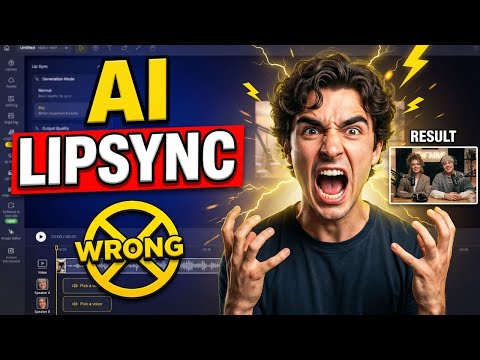
 DZine AI
Demo summary
The video shows the Dzine AI chat editor being used to modify character poses, adjust actions, and swap backgrounds without regenerating the entire image.
Step-by-step
- Click the image you want to use
- Open the chat editor
- Enter commands to change character poses or actions
- Refine or swap the background
- Add or reposition elements within the scene
Options
- Change the pose of a character
- Adjust the action
- Completely swap the background
- Add another character to the scene
- Reposition elements
Tips
- Use the chat editor to make controlled changes instead of starting over every time something feels off
Highlights
“This is the difference between creating images and directing animation.”
All demos from “Dzine AI Tutorial: From Text to Image to Lip Sync”
- 0:500:59Generate base images with Dzine AIThe user demonstrates how to use the text-to-image tool in Dzine AI, selecting the 'Nano Banana Pro' style and setting canvas aspect ratios for a base scene.DZine AI· Text to Image
- 1:530:33Edit scenes using Dzine AI Chat EditorCurrentThe video shows the Dzine AI chat editor being used to modify character poses, adjust actions, and swap backgrounds without regenerating the entire image.DZine AI· AI Inpainting
- 3:021:08Multi-character lip sync in Dzine AIThe demonstration shows how to assign voices to specific characters, arrange audio clips on a timeline to prevent overlapping dialogue, and generate automated facial movements.DZine AI· AI Lip Sync Generator
- 4:100:16Enhance animation with Dzine AI Pro ModeThe user activates 'Pro Mode' in Dzine AI to add natural head motion, body movement, and expressive gestures to the lip-synced characters.DZine AI· AI Animation Generator
- Watch “Dzine AI Tutorial: From Text to Image to Lip Sync” →
AI Inpainting
 11:120:43Character replacement with Nano Banana ProThe user demonstrates a character reference workflow in Dzine AI, uploading two images and using a prompt to replace the subject in the first image with the character from the second.metricsmule
 14:480:35Edit character poses manuallyThe creator shows how to use the 'Edit Pose' button to manually adjust a character's skeletal structure to create specific actions like push-ups.Moe Lueker
- 17:210:46Replace characters in a scene using Lasso toolThe user demonstrates the 'Insert Character' tool, using a lasso to select a person in an image and replace them with a trained AI clone of himself.Moe Lueker
- 1:530:33Edit scenes using Dzine AI Chat EditorCurrentThe video shows the Dzine AI chat editor being used to modify character poses, adjust actions, and swap backgrounds without regenerating the entire image.AiTLDR
 27:540:36Local editing and generative fillThe creator selects a character's glasses and uses a text prompt to replace them with 'sunglasses very dark shade' using the local edit tool.Wade McMaster - Creator Impact
 3:280:30Local editing with AIThe user selects a specific area of an image and uses a text prompt to modify only that region using Dzine AI's local edit feature.Dzine
- 3:580:34Insert objects using reference imagesThe demo shows how to upload a reference image and sketch a rough shape to seamlessly insert a new object into an existing scene.Dzine