Higgsfield: Character replacement using Recast Studio

 Higgsfield
Demo summary
A walkthrough of the Recast tool on Higgsfield AI, showing how to replace a video character's entire appearance, voice, and background using presets or custom images.
Step-by-step
- Navigate to Character and select Recast Studio
- Upload your source video
- Select a character from the presets or upload your own
- Choose a voice from the available options or select the voice cloning feature
- Select a background option at the bottom of the interface
- Click to generate the recast video
Options
- Use preset cartoon or CGI characters
- Clone your own voice to apply to the character
- Translate the character's voice into different languages
- Keep the original background or switch to a green screen
Tips
- Use the green screen option if you plan to take the video into another editor to add a custom background later
Highlights
“Another awesome feature within Higsfield is their recast tool.”
All demos from “Insane Face Swap For Videos! How To Swap Faces in Any Video”
- 0:301:22Video face swapping with Higgsfield AIThe creator demonstrates how to upload a source video and a target face image to Higgsfield AI to perform a realistic face swap, showing results for aging and youth filters.Higgsfield· AI Face Swap Video
- 5:351:01Character replacement using Recast StudioCurrentA walkthrough of the Recast tool on Higgsfield AI, showing how to replace a video character's entire appearance, voice, and background using presets or custom images.Higgsfield· Video to Video
- 7:520:46Character animation with Higgsfield AnimateThe creator uses Higgsfield Animate (WAN 2.2) to animate a static character image based on the movements of a source video, turning a person holding a pen into an explorer with a candle.Higgsfield· Video to Video
- 9:180:44Changing image camera angles with Qwen Image EditA demonstration of the Qwen image editor on Hugging Face, showing how to use sliders to change the camera perspective and vertical angle of a static car image while maintaining consistency.Hugging Face· AI Photo Editor
- Watch “Insane Face Swap For Videos! How To Swap Faces in Any Video” →

Video to Video
 7:371:30Replicate and modify a viral video trendThe user uploads a reference video for analysis, and Higgsfield Supercomputer creates a new version with different subjects (fruits) while maintaining the original's visual style and structure.RandomAI
 7:271:04Recreate social media videos with Video AdaptThe user demonstrates the 'Video Adapt' feature by dropping a TikTok link into Higgsfield to have the agent rebuild the video's structure while applying the user's specific brand colors and style.AI Master
 7:240:31Motion control and background replacementThe user demonstrates transferring motion from a source video of a man running into a new generated environment (horror hallway) using Higgsfield AI.Higgsfield AI
 8:050:47Video-to-video consistency in HiggsfieldThe creator demonstrates using a previously generated video as a reference in Higgsfield to maintain lighting, mood, and environment consistency in a new scene.Isa does AI
 4:082:53Building a multi-stage AI video pipelineThe user builds a complex workflow in Higgsfield Canvas by connecting a generated video to a new video generator node to create a seamless transition into a new scene.Mhd Labs
 7:430:46Edit and merge characters with Kling O1The user shows how to use the 'Edit Video' feature to replace a subject in an existing video with a different AI character (a crocodile) using the Kling O1 model.Dom the AI Tutor | Tech Tutor Zones
 4:130:33Generating Video from First and Last Frames in HiggsfieldThe user shows the process of taking an anamorphic wide shot and its modified version (with the character removed) to generate a video transition using Higgsfield's video mode.Workman Labs
- 5:351:01Character replacement using Recast StudioCurrentA walkthrough of the Recast tool on Higgsfield AI, showing how to replace a video character's entire appearance, voice, and background using presets or custom images.Atomic Gains
- 7:520:46Character animation with Higgsfield AnimateThe creator uses Higgsfield Animate (WAN 2.2) to animate a static character image based on the movements of a source video, turning a person holding a pen into an explorer with a candle.Atomic Gains
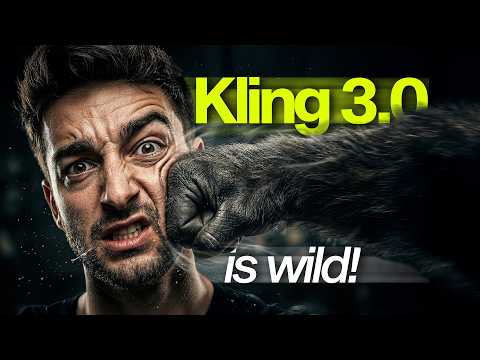 17:060:48Restyle video backgrounds with Kling 3.0 OmniEditThe creator demonstrates the OmniEdit model by uploading a video and using a text prompt to change the background to a snowy mountain while keeping the subject intact.Sebastien Jefferies
 0:210:16Accessing Kling Motion Control on HiggsfieldThe creator shows the Higgsfield interface, navigating to the video tab and explaining how to upload a source motion video and a target character image.Atomic Gains
 2:210:16Animate AI influencer with Higfield AIThe creator demonstrates an alternative method using Higfield AI's motion control feature to combine a reference video and an influencer image into an animated result.Hacker army