Higgsfield: Edit and merge characters with Kling O1

 Higgsfield
Demo summary
The user shows how to use the 'Edit Video' feature to replace a subject in an existing video with a different AI character (a crocodile) using the Kling O1 model.
Step-by-step
- Click the three dots on an existing video
- Select Reuse
- Click Edit Video in the upper corner to switch to Kling O1 edit mode
- Replace the subject in the video with a different character or influencer
- Generate the merged scene
Options
- Replace a male subject with a different character (e.g., a crocodile)
- Add a character to join an existing scene (e.g., a dinner party)
All demos from “Higgsfield AI Infuencer Studio Full Tutorial & Showcase”
- 0:582:13Create an AI influencer with Higgsfield's visual builderThe user demonstrates the step-by-step process of building a character by selecting attributes like ethnicity, eye color, skin conditions, and body types (including robotic limbs) using the Higgsfield AI influencer studio.Higgsfield· AI Avatar Generator
- 3:460:22Generate AI characters using text promptsThe video shows how to switch to prompt mode in Higgsfield AI to generate a realistic character with specific details like freckles.Higgsfield· AI Person Generator
- 5:461:22Animate characters using the Motion LibraryThe user demonstrates applying pre-set motions from the viral motion library and uploading a custom TikTok video to guide the movement of an AI influencer.Higgsfield· AI Animation Generator
- 7:080:35Animate AI influencers with Kling 2.6The demonstration shows how to select an image, write an action prompt, and use the Kling 2.6 model within Higgsfield to generate a video of the character wrestling.Higgsfield· Image to Video
- 7:430:46Edit and merge characters with Kling O1CurrentThe user shows how to use the 'Edit Video' feature to replace a subject in an existing video with a different AI character (a crocodile) using the Kling O1 model.Higgsfield· Video to Video
- 10:250:19Lip-sync AI characters in Lip-sync StudioThe video demonstrates the Lip-sync Studio feature where a generated character is made to speak specific dialogue with synchronized mouth movements.Higgsfield· AI Lip Sync Generator
- 10:440:27Adjust cinematic settings in Cinema StudioThe user walks through the Cinema Studio interface to adjust camera types (IMAX, Arri Alexa), focal lengths, and aperture for a generated scene.Higgsfield· AI Image Generator
- 11:160:40Create a consistent character from personal photosThe demonstration shows the 'Soul ID' feature where the user uploads personal photos to train a consistent AI avatar of themselves.Higgsfield· AI Avatar Generator
- Watch “Higgsfield AI Infuencer Studio Full Tutorial & Showcase” →
Video to Video
 7:371:30Replicate and modify a viral video trendThe user uploads a reference video for analysis, and Higgsfield Supercomputer creates a new version with different subjects (fruits) while maintaining the original's visual style and structure.RandomAI
 7:271:04Recreate social media videos with Video AdaptThe user demonstrates the 'Video Adapt' feature by dropping a TikTok link into Higgsfield to have the agent rebuild the video's structure while applying the user's specific brand colors and style.AI Master
 7:240:31Motion control and background replacementThe user demonstrates transferring motion from a source video of a man running into a new generated environment (horror hallway) using Higgsfield AI.Higgsfield AI
 8:050:47Video-to-video consistency in HiggsfieldThe creator demonstrates using a previously generated video as a reference in Higgsfield to maintain lighting, mood, and environment consistency in a new scene.Isa does AI
 4:082:53Building a multi-stage AI video pipelineThe user builds a complex workflow in Higgsfield Canvas by connecting a generated video to a new video generator node to create a seamless transition into a new scene.Mhd Labs
- 7:430:46Edit and merge characters with Kling O1CurrentThe user shows how to use the 'Edit Video' feature to replace a subject in an existing video with a different AI character (a crocodile) using the Kling O1 model.Dom the AI Tutor | Tech Tutor Zones
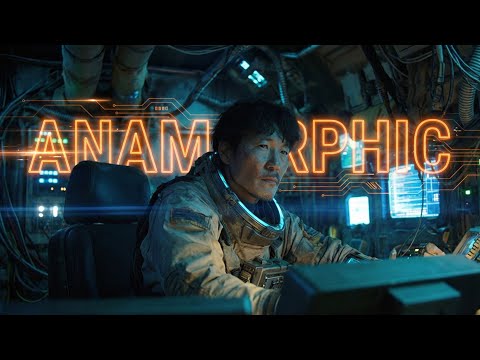 4:130:33Generating Video from First and Last Frames in HiggsfieldThe user shows the process of taking an anamorphic wide shot and its modified version (with the character removed) to generate a video transition using Higgsfield's video mode.Workman Labs
 5:351:01Character replacement using Recast StudioA walkthrough of the Recast tool on Higgsfield AI, showing how to replace a video character's entire appearance, voice, and background using presets or custom images.Atomic Gains
- 7:520:46Character animation with Higgsfield AnimateThe creator uses Higgsfield Animate (WAN 2.2) to animate a static character image based on the movements of a source video, turning a person holding a pen into an explorer with a candle.Atomic Gains
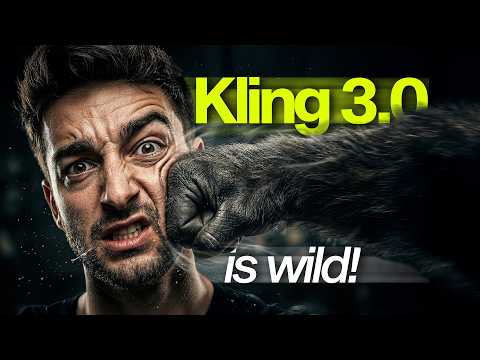 17:060:48Restyle video backgrounds with Kling 3.0 OmniEditThe creator demonstrates the OmniEdit model by uploading a video and using a text prompt to change the background to a snowy mountain while keeping the subject intact.Sebastien Jefferies
 0:210:16Accessing Kling Motion Control on HiggsfieldThe creator shows the Higgsfield interface, navigating to the video tab and explaining how to upload a source motion video and a target character image.Atomic Gains
 2:210:16Animate AI influencer with Higfield AIThe creator demonstrates an alternative method using Higfield AI's motion control feature to combine a reference video and an influencer image into an animated result.Hacker army