Kling AI: Text-Prompted Video Generation with Negative Prompts

 Kling AI
Demo summary
The user demonstrates using a specific text prompt and negative prompts (to avoid flickering or face morphing) alongside an image to generate a high-quality video clip.
Step-by-step
- Upload an image to the platform
- Enter a text prompt describing the desired style and action
- Add negative prompts to specify what to exclude
- Generate the video
Tips
- Include negative prompts like 'morphing' or 'flickering' to maintain visual consistency
- Break down your prompt by starting with the style followed by the specific action or text shown
Highlights
“I was never able to do this before”
All demos from “How I Create AI Videos in 8 Minutes (Kling 3.0 Tutorial)”
- 1:030:24Basic Image-to-Video Generation with Kling 3.0The creator demonstrates the 'easy mode' of Kling 3.0 by uploading a single image of a dog and generating a motion video within the Higgsfield interface.Higgsfield· Image to Video
- 1:270:31Connecting Start and End Frames in Kling 3.0The demo shows how to provide Kling 3.0 with two separate images (a start and end frame) to have the AI interpolate the motion between them without a text prompt.Kling AI· Image to Video
- 2:070:23Text-Prompted Video Generation with Negative PromptsCurrentThe user demonstrates using a specific text prompt and negative prompts (to avoid flickering or face morphing) alongside an image to generate a high-quality video clip.Kling AI· Image to Video
- 3:290:56Directing Multi-Shot AI VideosThe creator walks through the 'Multi-shot' feature in Higgsfield, showing how to input custom prompts for five distinct shots to create a cohesive narrative scene.Higgsfield· AI Movie Generator
- 4:361:24Adding Character Elements to AI ScenesThe tutorial demonstrates how to use the 'Elements' feature to upload character references (photos of the creator) and insert them into a specific shot of an AI-generated video using the @ mention system.Kling AI· AI Animation Generator
- 6:000:47Product Showcase with Multi-Shot and ElementsA demonstration of combining product images (a custom watch) with the Multi-shot and Elements features to create a commercial-style video featuring a consistent character.Kling AI· AI Commercial Generator
- Watch “How I Create AI Videos in 8 Minutes (Kling 3.0 Tutorial)” →

Image to Video
 8:032:02Animate images using Kling AIThe video shows the process of uploading a generated image to Kling AI and applying an image-to-video prompt to create a 3D-style animation.Emmanuel Crown
 2:301:24Animate still images using Kling AIThe creator demonstrates the image-to-video feature by uploading photos and using descriptive prompts to control camera movement and environmental animation.Roboverse
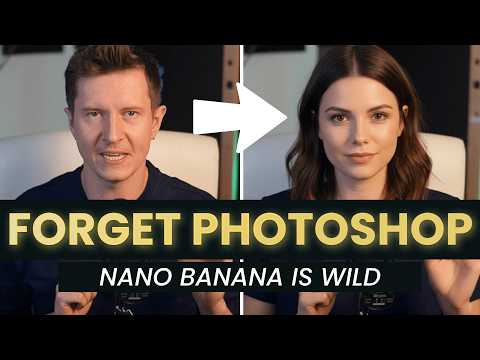 10:361:18Animate images using Kling AI first and last framesThe user demonstrates using Kling 2.1 to animate a character by uploading a starting frame (with a hat) and an ending frame (without a hat) generated in Gemini.AI Samson
 3:321:08Generating consistent character angles with Multi-shotUsing a single image reference, the creator shows how to describe multiple camera angles and actions for a character to generate a consistent 12-second multi-scene video.Dan Kieft
- 15:001:06Image-to-video with start and end framesThe creator demonstrates the image-to-video method by setting a specific start frame and using multi-shot prompts to control the motion and narrative flow.Dan Kieft
 7:360:33Apply image effects in Kling AIThe user uploads a portrait photo to Kling AI's 'effects' tool and selects the 'flyer' template to generate a stylized motion video.@KevinStratvert
 4:200:36Animate AI images into video using Kling AIThe video demonstrates converting a static AI influencer image into a realistic video with natural gestures using the integrated Kling AI 2.1 model.The AI Hustle
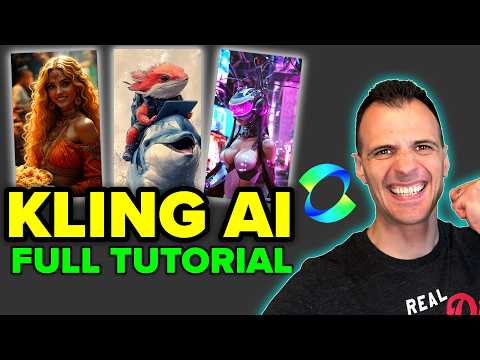 3:371:02Animate images using Kling AI Motion BrushThe video shows how to upload a starting image and use the Motion Brush tool in Kling AI to mask specific areas and define a movement path for birds in a cartoon scene.Caffeinated Blogger
 7:020:35Combine elements into a single videoThe user demonstrates combining two separate images—an empty car interior and a creature—into a single animated video using Kling O1's element feature.Dan Kieft
- 8:000:36Mimic camera motion from a reference videoThe demo illustrates how to upload a video with specific drone movement and apply that exact camera style to a static image using Kling O1.Dan Kieft
 20:400:49Using @ tags for specific image references in Kling O1The creator demonstrates the new tagging feature in the Kling O1 prompt bar, showing how to use the '@' symbol to reference specific uploaded images for character or object placement.Rourke Heath
 17:020:28Motion transfer with Kling AIThe creator shows how to use Kling Motion Transfer to map the movements from a real 'driving video' of himself onto a static AI influencer image.Sirio