Filmora: Animate paths using the Pen Tool

 Filmora
Demo summary
The demonstration covers drawing a custom path with the pen tool, adjusting stroke styles, and using the 'path follow' feature to link objects to the animated line.
Step-by-step
- Select the Pen tool under the shape icon
- Draw your path or shape on the canvas
- Hold and drag points to curve corners
- Add keyframes in the Trim Path section at the beginning and end of the clip
- Adjust the path style in the Stroke and Shadow sections
- Link an object or video to the path using the Path Follow setting
Options
- Turn the drawing into a shape or an animation path
- Link objects using built-in presets
- Link your own image or video by importing it or selecting a timeline clip
Tips
- Use the end keyframe to control the front of your path and the start keyframe to control the back
- Use this tool for motion graphics or visual effects
All demos from “No Motion Skills? Movie Editing & Animation Presets in Filmora 15 🚀 (Beginner Guide)”
- 0:200:44Create and customize animated charts in Filmora 15The user demonstrates how to locate the animated chart effect, customize data inputs via Excel, and modify the visual style by disabling headers and adjusting animation duration.Filmora· AI Motion Graphics
- 1:110:31Apply animation presets to video clipsThe narrator shows how to select a clip on the timeline and apply entrance, exit, or looping animation presets from the animation tab without manual keyframing.Filmora· AI Video Editor
- 1:470:44Adjusting keyframe curves for smooth motionThe user demonstrates adding keyframes for position and scale, then right-clicking to access the 'show keyframe animation' menu to change linear motion to ease-in, ease-out, or continuous curves.Filmora· AI Video Editor
- 2:310:56Animate paths using the Pen ToolCurrentThe demonstration covers drawing a custom path with the pen tool, adjusting stroke styles, and using the 'path follow' feature to link objects to the animated line.Filmora· AI Animation Generator
- Watch “No Motion Skills? Movie Editing & Animation Presets in Filmora 15 🚀 (Beginner Guide)” →
AI Animation Generator
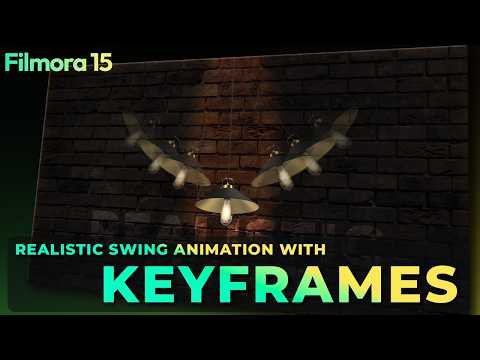 2:130:54Applying rotation keyframesThe user walks through placing the playhead at specific intervals and changing rotation values to create a swinging motion for the light asset.Filmora for Creators
- 2:310:56Animate paths using the Pen ToolCurrentThe demonstration covers drawing a custom path with the pen tool, adjusting stroke styles, and using the 'path follow' feature to link objects to the animated line.Wondershare Filmora Video Editor
 16:090:41Bezier Curves and Animation GraphsThe user shows how to convert linear keyframes to continuous curves and use the animation graph panel to fine-tune motion timing.Salih Tutorials
 3:070:32Fine-tune animation curves with handlesThe user demonstrates using the adjustment handles on Bézier points to manually customize the acceleration and deceleration of the zoom effect.Wondershare Filmora France