GarageBand: Create a manual volume fade in using Master Track automation


Demo summary
The tutorial shows how to reveal the Master Track, enable automation, and drag volume points to create a smooth fade-in for an entire project.
Step-by-step
- Go to the toolbar and select Track
- Select Show Master Track from the menu
- Select Mix from the toolbar and click Show Automation (or press the A key)
- Ensure the dropdown menu in the Master Track header is set to Volume
- Move the playhead to the start of the project
- Click on the automation line to create two automation points
- Click and drag the first point down to zero
Options
- Press the A key on the keyboard to toggle automation visibility
- Select different parameters to automate from the Master Track dropdown menu
Tips
- Use the Master Track to adjust the volume of the entire project at once instead of editing individual tracks
- Play around with the placement of automation points to ensure the fade sounds just right
Highlights
“Creating a fade in is really straightforward using Garage Band's automation feature and the master track.”
All demos from “GarageBand’s Most Underrated Features (You’re Not Using Them!)”
- 9:062:11Create a manual volume fade in using Master Track automationCurrentThe tutorial shows how to reveal the Master Track, enable automation, and drag volume points to create a smooth fade-in for an entire project.GGarageBand· AI Audio Editor
- 11:171:12Generate an automatic volume fade outThe narrator demonstrates the 'Create volume fade out on main output' menu command and explains how to adjust the end-of-project marker to control the timing.GGarageBand· AI Audio Editor
- 12:541:33Fix audio timing errors with Flex TimeThe demo shows how to enable Flex Time in the editor, identify transients in a waveform, and drag flex markers to align off-beat notes with the project grid.GGarageBand· AI Audio Editor
- Watch “GarageBand’s Most Underrated Features (You’re Not Using Them!)” →
AI Audio Editor
 2:071:01Recording live ukulele and adjusting tempoThe user demonstrates how to adjust the metronome and tempo settings in GarageBand before recording a live ukulele track through the MacBook microphone.ben barr
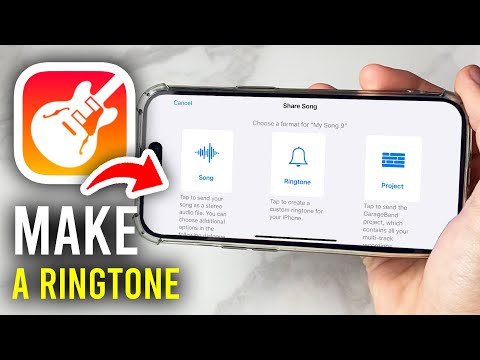 0:111:23Create an iPhone ringtone with GarageBandThe narrator demonstrates how to import a sound file into GarageBand, adjust the track length, and export the project specifically as a ringtone to the iPhone's system settings.GuideRealm
- 9:062:11Create a manual volume fade in using Master Track automationCurrentThe tutorial shows how to reveal the Master Track, enable automation, and drag volume points to create a smooth fade-in for an entire project.The GarageBand Guide
- 11:171:12Generate an automatic volume fade outThe narrator demonstrates the 'Create volume fade out on main output' menu command and explains how to adjust the end-of-project marker to control the timing.The GarageBand Guide
- 12:541:33Fix audio timing errors with Flex TimeThe demo shows how to enable Flex Time in the editor, identify transients in a waveform, and drag flex markers to align off-beat notes with the project grid.The GarageBand Guide
 3:040:30Edit and loop regions in GarageBandThe narrator demonstrates using Command+T to split tracks and dragging the loop section tool to repeat specific musical regions.Sweetwater Soundcheck
- 6:000:16Copy and paste regions to the playheadThe user demonstrates moving the playhead to a specific section and using Ctrl+C/Ctrl+V to duplicate musical regions across the timeline.Sweetwater Soundcheck
- 8:120:32Organize tracks with colors and labelsThe user shows how to assign specific colors to track headers and rename tracks for better project organization.Sweetwater Soundcheck
- 9:190:37Apply pitch correction to vocalsThe narrator demonstrates opening the track editor and applying the 'Limit to Key' pitch correction (autotune) effect to a vocal recording.Sweetwater Soundcheck
- 11:420:33Automate volume in GarageBandThe demonstrator hits the 'A' key to show volume automation lanes and demonstrates drawing points to create volume swells and level adjustments.Sweetwater Soundcheck
- 12:280:42Pan vocal tracks for a wider soundThe user demonstrates how to pan multiple vocal stacks to the left and right to create a 'wall of sound' effect.Sweetwater Soundcheck
- 13:130:37Add plugins and export the final songThe narrator shows how to swap plugins like noise gates or compressors and then uses the 'Share to Music' feature to export the finished track.Sweetwater Soundcheck