Mastering audio with LANDR Mastering Plugin

 Landr
Landr
Demo summary
The creator demonstrates the LANDR Mastering plugin inside a DAW, adjusting parameters like loudness, EQ, and mastering styles (warm, balanced, open) while using the gain match feature to A/B test the results.
Step-by-step
- Open the LANDR Mastering plugin within your DAW
- Select a mastering style from the options: Warm, Balanced, or Open
- Adjust parameters including Loudness, EQ, Stereo Width, Presence, Compression, and Saturation
- Toggle the Gain Match feature to equalize volume levels
- A/B test the track by switching between the mastered and unmastered versions
Options
- Choose between Warm, Balanced, or Open mastering styles to suit different genres
- Sculpt sound further using manual controls for presence and saturation
Tips
- Use the Gain Match feature to make it easier to objectively compare the mastered and unmastered audio
Highlights
“selecting gain match makes it really easy to AB between the mastered and the unmastered version”
All demos from “I Mastered the Same Track with LANDR & Mixea — You Won’t Believe the Difference”
- 0:222:01Mastering audio with LANDR Mastering PluginCurrentThe creator demonstrates the LANDR Mastering plugin inside a DAW, adjusting parameters like loudness, EQ, and mastering styles (warm, balanced, open) while using the gain match feature to A/B test the results.Landr· AI Mastering
- 2:320:14Adjusting mastering settings in MixeaThe user shows the browser-based Mixea interface, specifically demonstrating the limited control sliders for EQ (bright to warm) and intensity.MMixea· AI Mastering
- Watch “I Mastered the Same Track with LANDR & Mixea — You Won’t Believe the Difference” →
AI Mastering
 11:362:20Mastering a track with Landr OnlineThe user demonstrates the Landr online mastering interface, using the 'volume match' toggle to compare original and mastered audio while switching between Warm, Balanced, and Open styles.Audio Tech TV
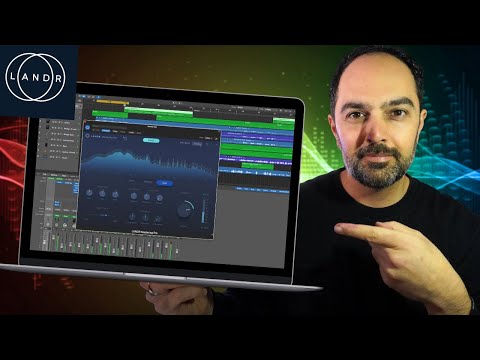 2:014:00Mastering audio with LANDR Mastering Pro plugin in Logic ProThe creator demonstrates loading the LANDR Mastering Pro plugin on a stereo out channel in Logic Pro, analyzing the audio, and adjusting parameters like style (Warm, Balanced, Open), EQ, loudness, and stereo field.Amir Khostavan
- 8:491:42Online AI mastering with LANDR.comThe user uploads a track to the LANDR website, waits for the AI preview to generate, and then demonstrates toggling between mastering styles and loudness intensities online.Amir Khostavan
 1:122:19Mastering a song with LANDR Mastering ProThe creator demonstrates the LANDR Mastering Pro plugin by analyzing a track, toggling gain match, selecting the 'Open' style, and manually adjusting EQ, presence, and compression settings to achieve a target LUFS level.Songs By Spencer
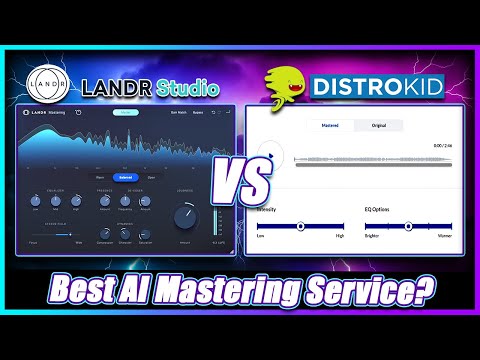 1:184:01Mastering a track with Landr Mastering PluginThe creator demonstrates using the Landr Mastering Plugin within a DAW, adjusting settings like Warmth, EQ, Stereo Field, and Saturation while hearing real-time changes.Simulation Beats
 7:451:31Automated track analysis with LANDR Mastering Plugin ProThe creator drags the LANDR Mastering Plugin Pro onto a track in Studio One and plays the audio to let the plugin's AI analyze the song and generate a custom mastering chain.Bolo Da Producer
- 9:222:00Exploring LANDR Mastering Plugin Pro controlsA walkthrough of the plugin's UI, including the presence knob, de-esser, dynamics, saturation, stereo field controls, and the gain match feature for A/B comparison.Bolo Da Producer
- 12:102:40Adjusting loudness and saturation in LANDRThe creator demonstrates manual adjustments to the saturation and loudness meter to reach a target LUFS level while comparing the mastered audio to the original mix.Bolo Da Producer
- 15:380:51Switching mastering styles (Warm, Open, Balanced)The user demonstrates how switching between the 'Warm', 'Open', and 'Balanced' style presets in the LANDR plugin changes the sonic character of the master in real-time.Bolo Da Producer
 2:300:06Upload and master a track in LANDRThe user demonstrates the LANDR web interface, clicking 'new' and 'master a track instantly' to begin the AI mastering process.Orpheus Audio Academy
- 5:141:10Adjusting mastering settings in LANDRThe user demonstrates volume matching, switching between 'Open' and 'Warm' styles, and adjusting loudness settings within the LANDR interface before creating the final master.Orpheus Audio Academy
- 0:222:01Mastering audio with LANDR Mastering PluginCurrentThe creator demonstrates the LANDR Mastering plugin inside a DAW, adjusting parameters like loudness, EQ, and mastering styles (warm, balanced, open) while using the gain match feature to A/B test the results.Real Home Studio