Adjusting mastering settings in Mixea


Demo summary
The user shows the browser-based Mixea interface, specifically demonstrating the limited control sliders for EQ (bright to warm) and intensity.
Step-by-step
- Upload your WAV file to the Mixea platform
- Adjust the EQ slider between the Brighter and Warmer settings
- Adjust the Intensity slider between the Low and High settings
Watch out for
- You have no other control options beyond the EQ and Intensity sliders
Highlights
“you kind of upload your WAV and hope for the best”
All demos from “I Mastered the Same Track with LANDR & Mixea — You Won’t Believe the Difference”
- 0:222:01Mastering audio with LANDR Mastering PluginThe creator demonstrates the LANDR Mastering plugin inside a DAW, adjusting parameters like loudness, EQ, and mastering styles (warm, balanced, open) while using the gain match feature to A/B test the results.Landr· AI Mastering
- 2:320:14Adjusting mastering settings in MixeaCurrentThe user shows the browser-based Mixea interface, specifically demonstrating the limited control sliders for EQ (bright to warm) and intensity.MMixea· AI Mastering
- Watch “I Mastered the Same Track with LANDR & Mixea — You Won’t Believe the Difference” →

AI Mastering
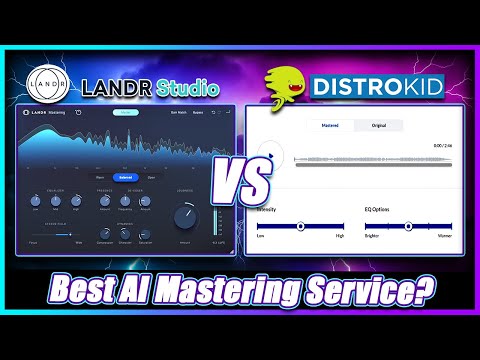 5:271:30AI Mastering with Distrokid MixeaThe creator uploads an unmastered track to the Mixea web interface and demonstrates the Intensity and EQ sliders to adjust the final sound.Simulation Beats
 7:100:34Mastering with Mixea by DistroKidThe user demonstrates the Mixea interface, adjusting the brightness and intensity sliders to modify the master before downloading.Orpheus Audio Academy
- 2:320:14Adjusting mastering settings in MixeaCurrentThe user shows the browser-based Mixea interface, specifically demonstrating the limited control sliders for EQ (bright to warm) and intensity.Real Home Studio