Mastering a track with Landr Online

 Landr
Landr
Demo summary
The user demonstrates the Landr online mastering interface, using the 'volume match' toggle to compare original and mastered audio while switching between Warm, Balanced, and Open styles.
Step-by-step
- Select a song from your library to open the mastering interface
- Toggle Volume Match to compare audio without level differences
- Switch between Original and Master to hear the processing effects
- Select a style from Warm, Balanced, or Open
- Set the Loudness level
- Click Create Master to process the final file
Options
- Hover over style names to view descriptions of their sonic characteristics
- Upload external reference tracks
- Reference previously mastered tracks to maintain consistency across an album
Tips
- Use Volume Match so you hear the actual effect difference of the mastering rather than just the volume increase
- Try Balanced or Warm styles first as they often provide the best results for most tracks
- Leave the Loudness setting at Medium for standard results
- Use a previous master as a reference when working on an album so songs don't stick out like a sore thumb
Highlights
“it really thickens the song up and kind of beefs it up, makes it sound a little more professional”
AI Mastering
- 11:362:20Mastering a track with Landr OnlineCurrentThe user demonstrates the Landr online mastering interface, using the 'volume match' toggle to compare original and mastered audio while switching between Warm, Balanced, and Open styles.Audio Tech TV
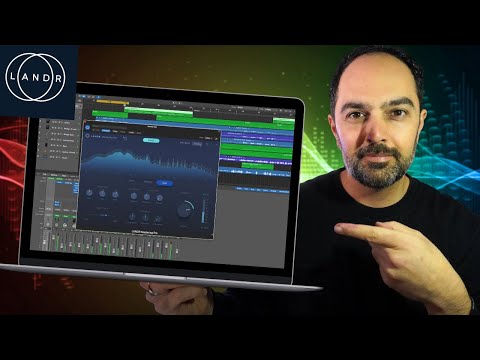 2:014:00Mastering audio with LANDR Mastering Pro plugin in Logic ProThe creator demonstrates loading the LANDR Mastering Pro plugin on a stereo out channel in Logic Pro, analyzing the audio, and adjusting parameters like style (Warm, Balanced, Open), EQ, loudness, and stereo field.Amir Khostavan
- 8:491:42Online AI mastering with LANDR.comThe user uploads a track to the LANDR website, waits for the AI preview to generate, and then demonstrates toggling between mastering styles and loudness intensities online.Amir Khostavan
 1:122:19Mastering a song with LANDR Mastering ProThe creator demonstrates the LANDR Mastering Pro plugin by analyzing a track, toggling gain match, selecting the 'Open' style, and manually adjusting EQ, presence, and compression settings to achieve a target LUFS level.Songs By Spencer
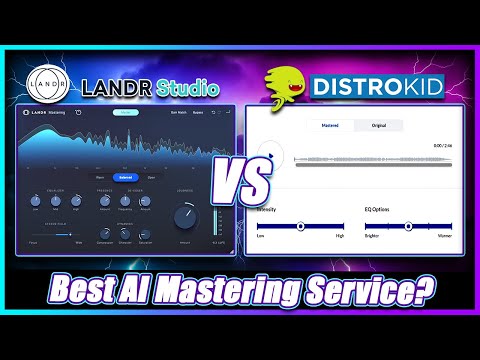 1:184:01Mastering a track with Landr Mastering PluginThe creator demonstrates using the Landr Mastering Plugin within a DAW, adjusting settings like Warmth, EQ, Stereo Field, and Saturation while hearing real-time changes.Simulation Beats
 7:451:31Automated track analysis with LANDR Mastering Plugin ProThe creator drags the LANDR Mastering Plugin Pro onto a track in Studio One and plays the audio to let the plugin's AI analyze the song and generate a custom mastering chain.Bolo Da Producer
- 9:222:00Exploring LANDR Mastering Plugin Pro controlsA walkthrough of the plugin's UI, including the presence knob, de-esser, dynamics, saturation, stereo field controls, and the gain match feature for A/B comparison.Bolo Da Producer
- 12:102:40Adjusting loudness and saturation in LANDRThe creator demonstrates manual adjustments to the saturation and loudness meter to reach a target LUFS level while comparing the mastered audio to the original mix.Bolo Da Producer
- 15:380:51Switching mastering styles (Warm, Open, Balanced)The user demonstrates how switching between the 'Warm', 'Open', and 'Balanced' style presets in the LANDR plugin changes the sonic character of the master in real-time.Bolo Da Producer
 2:300:06Upload and master a track in LANDRThe user demonstrates the LANDR web interface, clicking 'new' and 'master a track instantly' to begin the AI mastering process.Orpheus Audio Academy
- 5:141:10Adjusting mastering settings in LANDRThe user demonstrates volume matching, switching between 'Open' and 'Warm' styles, and adjusting loudness settings within the LANDR interface before creating the final master.Orpheus Audio Academy
 0:222:01Mastering audio with LANDR Mastering PluginThe creator demonstrates the LANDR Mastering plugin inside a DAW, adjusting parameters like loudness, EQ, and mastering styles (warm, balanced, open) while using the gain match feature to A/B test the results.Real Home Studio