Clipchamp: Editing audio files

 Clipchamp
Demo summary
The tutorial walks through adding audio to the timeline and applying the same trimming and splitting techniques used for video.
Step-by-step
- Click Import to select an audio file or use an existing one from the library
- Drag and drop the audio file onto the timeline or click the Add to timeline button
- Delete any gaps between the start of the timeline and the audio clip to move it to the front
- Drag the ends of the audio clip to trim the duration
- Click the Split icon or press S on the keyboard to cut the audio in the middle
- Select and delete unwanted audio segments
Options
- Drag and drop files directly to a specific location
- Use the Add to timeline button to place audio at the current marker position
- Use the S keyboard shortcut for splitting
Watch out for
- Clicking Add to timeline will place the audio where the marker is currently located, not necessarily at the beginning
Tips
- Apply the same trimming and splitting techniques used for video files to your audio files
All demos from “Clipchamp Tutorial for Beginners 2026 guide (step by step)”
- 5:161:26Importing media in ClipchampThe user demonstrates how to upload video and audio files from a local drive and mentions cloud integration options like OneDrive and Google Drive.Clipchamp· AI Video Editor
- 7:510:15Screen recording with ClipchampThe video shows the interface for selecting a specific window, tab, or the entire screen to record directly within the software.Clipchamp· AI Video Recording
- 11:151:59Arranging clips on the timelineThe demonstrator shows how to drag and drop media onto the timeline and use keyboard shortcuts to seek through the footage.Clipchamp· AI Video Editor
- 13:182:21Trimming and splitting video clipsThe user demonstrates trimming clip edges and using the 'S' key or scissor icon to split video segments in the middle of the timeline.Clipchamp· AI Video Editor
- 16:471:14Editing audio filesCurrentThe tutorial walks through adding audio to the timeline and applying the same trimming and splitting techniques used for video.Clipchamp· AI Audio Editor
- 18:301:30Cropping video in ClipchampThe user shows how to use the crop tool to manually adjust the visible area of a video clip on the canvas.Clipchamp· AI Video Editor
- 20:512:00Changing video aspect ratioThe demonstrator shows how to switch between different aspect ratios like 16:9 for YouTube and 9:16 for TikTok/Shorts.Clipchamp· AI Video Editor
- 23:240:48AI Noise Suppression for audioThe user demonstrates detaching audio from a clip and enabling the AI noise suppression feature to remove background fan noise.Clipchamp· AI Audio Enhancer & Noise Reduction
- 24:233:12Generating and styling auto-captionsThe video shows how to use AI to generate automatic captions and then customize their font, color, and alignment.Clipchamp· AI Video Editor
- 27:563:41Adding transitions and zoom effectsThe user demonstrates dragging transitions like crossfades and zoom-in effects between clips and adjusting their duration.Clipchamp· AI Video Editor
- 34:410:53Exporting video from ClipchampThe user walks through the export process, including selecting resolution (1080p) and naming the project file.Clipchamp· AI Video Editor
- Watch “Clipchamp Tutorial for Beginners 2026 guide (step by step)” →
AI Audio Editor
 0:480:19Adjust audio volume and fades in ClipchampThe narrator shows how to use the right-hand panel in Clipchamp to modify volume levels and apply fade-in and fade-out effects to an audio track.Theo Tuto
- 16:471:14Editing audio filesCurrentThe tutorial walks through adding audio to the timeline and applying the same trimming and splitting techniques used for video.Toolysto
 13:451:09Add background music and audioThe user demonstrates searching the audio library and adding a music track to the timeline, then trimming it to match the video length.Justin Brown - Primal Video
- 15:261:04Adjust audio volume levelsThe demonstration shows how to mute clips, use the volume slider for individual tracks, and balance music levels against spoken audio.Justin Brown - Primal Video
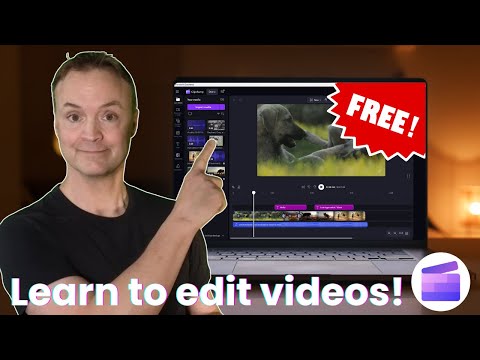 15:321:43Add and edit background musicThe video demonstrates adding an MP3 track to the timeline, trimming it to fit the video length, and applying fade-in/fade-out effects.Teacher's Tech
 5:320:22Adjusting audio volume levelsThe user shows how to select an audio clip to reveal the volume menu and lower the music level for a better mix.Howfinity