Mobile video creation workflow in Higgsfield

 Higgsfield
Demo summary
The creator demonstrates the Higgsfield progressive web app (PWA), showing its mobile-optimized UI and access to various video models like Kling and Veo.
All demos from “Best AI Video Generator on Your Phone (2026)”
- 0:510:46Generate AI video with Google Veo in GeminiThe video shows the process of using the Google Gemini app to prompt the Veo 3.1 model for video generation, highlighting the chat-based interface and the cancel button feature.Gemini· Text to Video
- 2:150:49Mobile video creation workflow in HiggsfieldCurrentThe creator demonstrates the Higgsfield progressive web app (PWA), showing its mobile-optimized UI and access to various video models like Kling and Veo.Higgsfield· AI Video Generator
- 3:510:36Using Pika.art mobile browser interfaceThe demo walks through the Pika.art mobile site, showing the prompt bar, effect icons, model switcher, and the process of uploading video from a camera roll.PPika· Video to Video
- 6:360:11PixVerse mobile text-to-video screenThe creator navigates the PixVerse mobile app to show the text-to-video creation screen and available trending templates.PPixverse AI· Text to Video
- 7:060:26Advanced motion control in Kling AI mobile appThe demo shows the Kling AI native app, specifically demonstrating the motion control features and camera roll upload process on a mobile screen.Kling AI· AI Animation Generator
- 8:330:49AI editing and video tools in ImagineArtThe video demonstrates the ImagineArt app's tool row, including AI images, videos, and editing tabs, showing the generation interface.Imagine.art· AI Image Generator
- 9:410:39Runway Gen-3 Alpha mobile interfaceThe creator shows the Runway mobile app's clean start screen and the side menu for navigating Gen-3 Alpha video generation features.Runway· AI Video Generator
- Watch “Best AI Video Generator on Your Phone (2026)” →




AI Video Generator
 8:030:49Simulate professional gear in Cinema StudioThe user uses Cinema Studio to select a full-frame cine digital camera and 35mm lens to generate a high-end cyberpunk image and then adds a 'dolly in' camera movement.Roboverse
 2:02:332:35Troubleshooting AI video motion and FPSThe creator demonstrates how to identify and fix frame rate issues and 'morphing' artifacts in Higgsfield AI video generations by adjusting prompt parameters.Higgsfield AI
 0:561:23Configuring camera settings and grid generation in HiggsfieldThe user demonstrates how to select specific camera bodies, lenses, and focal lengths in Higgsfield Cinema Studio 2, as well as setting up a 16-variation image grid to save credits.Higgsfield AI
 6:020:54Handheld zoom and detailizationA demonstration of a handheld camera zoom-in on a girl eating an onion ring, showcasing realistic textures, sound effects, and slow-motion without morphing.Higgsfield AI
 1:151:02Generate cinematic video with Hunyuan VideoThe creator demonstrates how to use Hunyuan Video's 'Director Mode' and 'Fluid Camera' settings to generate high-quality video clips with complex camera movements and subject focus.Malva AI
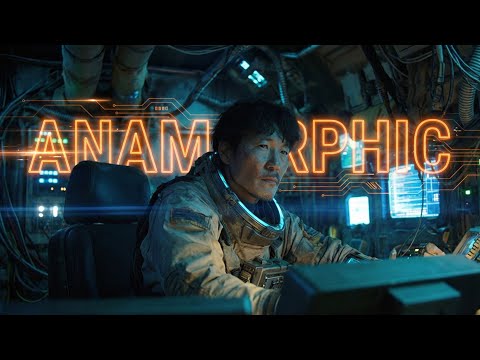 6:421:10Testing Orbit, Dolly, and Handheld Camera PresetsThe creator showcases the output of various camera movement presets in Higgsfield, including orbit, dolly-in, handheld, and drone shots applied to anamorphic scenes.Workman Labs
 0:500:52Generate multi-shot scenes with Kling 3.0The creator demonstrates how to use Kling 3.0 on the Higgsfield platform to generate a single video containing multiple camera angles and cuts by specifying timestamps in the prompt.Futurepedia
- 2:150:49Mobile video creation workflow in HiggsfieldCurrentThe creator demonstrates the Higgsfield progressive web app (PWA), showing its mobile-optimized UI and access to various video models like Kling and Veo.Youri van Hofwegen
 14:321:49Batch Video Generation PipelineThe creator demonstrates setting up a 'factory' workflow to generate multiple videos by connecting one base scene to several different character nodes and running the pipeline.DraftID
 0:340:35Navigating the Higgsfield Canvas interfaceThe creator walks through the Higgsfield Canvas UI, demonstrating how to add nodes for image, video, and voice generation from the sidebar.Joseph Martin
 4:022:39Reviewing Higgsfield AI video generation resultsA showcase of various AI-generated video results including a festive house drone shot, a Grinch animation, and an exploding present, demonstrating the tool's ability to follow complex prompts.InstantHowTo
 1:550:13Accessing Grok Imagine 1.5 in HiggsfieldThe creator demonstrates how to navigate the Higgsfield platform to select and launch the Grok Imagine 1.5 video model.AI for Real Life: Redefining Filmmaking