Manage video projects in Gemini Library
 Gemini
Demo summary
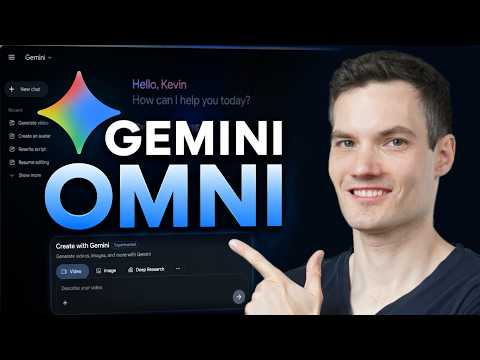
The demo shows how to access the library icon to view, resume editing, or download previously generated video projects.
Step-by-step
- Click on the library icon on the left-hand side
- Select a previously generated video from the list
- Continue refining the video in the chat interface or download it
Options
- Resume editing via the chat interface
- Download videos for later use
All demos from “How to Use Gemini Omni (Step-by-Step Tutorial)”
- 0:461:08Generate video from text with Gemini OmniThe user demonstrates how to navigate to the video icon in Gemini and enter a text prompt to generate a cinematic video of a storefront using the Omni model.Gemini· Text to Video
- 1:540:32Edit existing AI video with text promptsKevin shows how to modify a previously generated video by typing a prompt to change a sunny scene into a nighttime scene using Gemini Omni's iterative editing.Gemini· AI Video Editor
- 3:100:41Apply visual styles using reference imagesThe video demonstrates uploading a cartoon-style reference image to Gemini Omni to influence the aesthetic of a generated video storefront.Gemini· AI Style Transfer
- 3:561:05Create and use an AI avatar in Gemini OmniThe user walks through setting up a personal AI avatar via a QR code and then using the '@me' tag in a prompt to generate a video of the avatar speaking specific dialogue.Gemini· AI Avatar Video Generator
- 5:050:20Manage video projects in Gemini LibraryCurrentThe demo shows how to access the library icon to view, resume editing, or download previously generated video projects.Gemini· AI Video Editor
- Watch “How to Use Gemini Omni (Step-by-Step Tutorial)” →
AI Video Editor
 6:230:31Add objects to uploaded video footageThe creator uploads a real-world video of mountains and uses Gemini Omni to insert an active volcano into the background of the scene.Paul J Lipsky
 10:000:52Conversational video editing in Gemini OmniThe user demonstrates editing a video by simply typing chat commands to change the environment from a park to a beach without regenerating the subject.AI Master
- 1:540:32Edit existing AI video with text promptsKevin shows how to modify a previously generated video by typing a prompt to change a sunny scene into a nighttime scene using Gemini Omni's iterative editing.Kevin Stratvert
- 5:050:20Manage video projects in Gemini LibraryCurrentThe demo shows how to access the library icon to view, resume editing, or download previously generated video projects.Kevin Stratvert