Conversational video editing in Gemini Omni

 Gemini
Demo summary
The user demonstrates editing a video by simply typing chat commands to change the environment from a park to a beach without regenerating the subject.
Step-by-step
- Generate a base video clip using a text prompt
- Type a conversational command into the chat interface to request a specific change
- Hit send to process the iteration
- Review the updated clip to ensure the subject and motion are preserved while the environment changes
Options
- Perform macro edits
- Add specific elements to an existing generated scene
Watch out for
- Traditional video generation models (like VO) require a full regeneration from a new prompt which loses the original shot
Tips
- Use conversational language rather than complex technical prompts
- Avoid timeline scrubbing or manual masking by relying on the model's understanding of the existing clip
Highlights
“You made three separate edits on the same clip with zero timeline work. You just talk to it and it updates.”
All demos from “Goodbye Seedance... Gemini Omni: Google’s New AI Video Model is INSANE”
- 1:500:30Generate physics-based video with Gemini OmniThe user demonstrates Gemini Omni's physics understanding by prompting it to create a video of a ceramic teapot falling and shattering on a tile floor.Gemini· Text to Video
- 2:200:33Sequence multi-element scenes in Gemini OmniA demonstration of cause-and-effect logic where Gemini Omni generates a street market scene with wind affecting multiple objects in sequence.Gemini· AI Realistic Image Generator
- 2:550:30Animate architectural photos with Gemini OmniThe user combines a reference image of a brutalist building with a text prompt to generate a time-lapse video with moving clouds and shadows.Gemini· Image to Video
- 5:070:45Create a talking AI avatar in Gemini OmniThe video walks through the process of recording a 30-second clip to train Gemini Omni to generate a talking digital avatar of the user.Google Omni· AI Avatar Video Generator
- 6:271:22Apply visual style presets in Gemini OmniThe user demonstrates various style templates including Noir, 80s music video, Origami, and Pixelate to transform the look of generated video clips.Google Omni· Video to Video
- 9:010:45Generate animated memes with Gemini OmniThe 'Meme Me' template is shown taking a user photo and automatically applying meme formatting, typography, and subtle facial animation.Gemini· AI GIF Generator
- 10:000:52Conversational video editing in Gemini OmniCurrentThe user demonstrates editing a video by simply typing chat commands to change the environment from a park to a beach without regenerating the subject.Gemini· AI Video Editor
- 14:540:37Create video sequences from multiple photosGemini Omni takes five separate photos and generates a coherent 10-second video sequence with smooth transitions and a consistent mood.Gemini· Image to Video
- 15:350:41Animate static infographics with Gemini OmniThe user demonstrates feeding a flat chart into the model and prompting it to animate the data points in a logical reveal sequence.Gemini· AI Animation Generator
- Watch “Goodbye Seedance... Gemini Omni: Google’s New AI Video Model is INSANE” →

AI Video Editor
 6:230:31Add objects to uploaded video footageThe creator uploads a real-world video of mountains and uses Gemini Omni to insert an active volcano into the background of the scene.Paul J Lipsky
- 10:000:52Conversational video editing in Gemini OmniCurrentThe user demonstrates editing a video by simply typing chat commands to change the environment from a park to a beach without regenerating the subject.AI Master
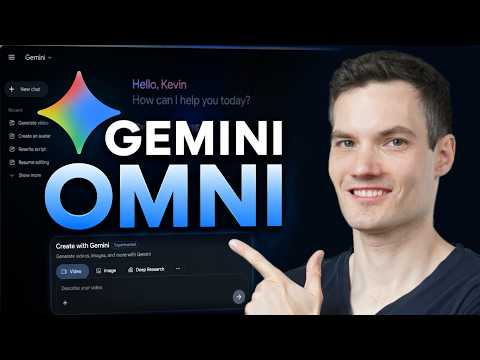 1:540:32Edit existing AI video with text promptsKevin shows how to modify a previously generated video by typing a prompt to change a sunny scene into a nighttime scene using Gemini Omni's iterative editing.Kevin Stratvert
- 5:050:20Manage video projects in Gemini LibraryThe demo shows how to access the library icon to view, resume editing, or download previously generated video projects.Kevin Stratvert