Clipchamp: Trim and split video clips
 Clipchamp
Demo summary
The tutorial demonstrates trimming the ends of a clip using the double-headed arrow cursor and using the split tool (S key) to cut segments out of the middle.
Step-by-step
- Drag a clip into the timeline
- Hover over the beginning or end of the clip until the cursor becomes a double-headed arrow
- Click and hold to drag the edge of the clip to trim it
- Position the playhead at a specific point in the clip
- Click the Split tool or press the 'S' key to cut the clip
- Select and delete unwanted segments or drag them to rearrange the order
Options
- Trim from either the beginning or the end of the clip
- Place split segments on different layers
- Drag trimmed edges back out to restore original footage
Watch out for
- The clip must be selected before you can use the split tool or 'S' key shortcut
Tips
- Use the split tool to remove mistakes or unwanted content from the middle of a video
- Note that trimming is non-destructive; the original clip data remains connected so you can pull it back later
All demos from “🎬 Learn Video Editing Quickly With This FREE Tool - Microsoft Clipchamp”
- 2:450:29Create and name a new project in ClipchampThe user demonstrates how to start a new video project from scratch and assign it a name for easy navigation within the dashboard.Clipchamp· AI Video Editor
- 3:200:23Change video aspect ratioThe video shows how to toggle between different aspect ratios like 16:9 widescreen and 9:16 vertical for social media platforms.Clipchamp· AI Video Editor
- 4:380:46Import media files to the media binThe presenter demonstrates importing MP4, MP3, and image files from a local computer folder into the Clipchamp media library.Clipchamp· AI Video Editor
- 5:371:19Navigate the timeline and preview windowThe user shows how to drag clips onto the timeline, use the spacebar for playback, and zoom in/out for frame-by-frame editing.Clipchamp· AI Video Editor
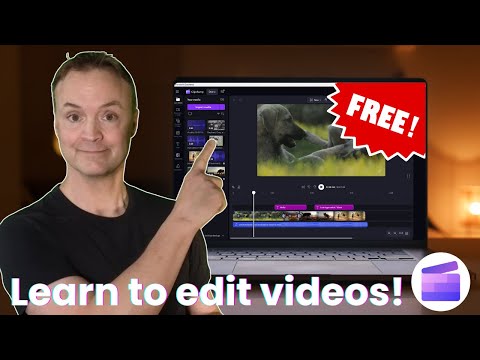
- 8:481:54Trim and split video clipsCurrentThe tutorial demonstrates trimming the ends of a clip using the double-headed arrow cursor and using the split tool (S key) to cut segments out of the middle.Clipchamp· AI Video Editor
- 10:422:16Layering videos and picture-in-picture effectsThe user demonstrates stacking video clips on different layers to create a picture-in-picture effect, adjusting transparency, and cropping specific areas.Clipchamp· AI Video Editor
- 14:030:57Detach and remove audio from videoThe presenter shows how to right-click a clip to detach its audio track, allowing the audio to be moved or deleted independently.Clipchamp· AI Video Editor
- 15:321:43Add and edit background musicThe video demonstrates adding an MP3 track to the timeline, trimming it to fit the video length, and applying fade-in/fade-out effects.Clipchamp· AI Audio Editor
- 17:191:18Apply transitions between clipsThe user shows how to drag transitions like crossfades and wipes between video clips and images to create smooth visual changes.Clipchamp· AI Video Editor
- 18:372:03Add and animate text overlaysThe tutorial demonstrates adding text styles to the timeline, editing the font and color, and applying animation effects like pulsing and fading.Clipchamp· AI Video Editor
- 20:591:20Apply filters and adjust playback speedThe user demonstrates applying visual filters like 'Old Western', adding a slow zoom effect, and doubling the playback speed of a clip.Clipchamp· AI Video Editor
- 22:241:12Export and save the final videoThe presenter demonstrates the export process, selecting 1080p resolution, and saving the final MP4 file to the local computer.Clipchamp· AI Video Editor
- Watch “🎬 Learn Video Editing Quickly With This FREE Tool - Microsoft Clipchamp” →
AI Video Editor
 0:050:34Add and edit background music in ClipchampThe narrator demonstrates how to navigate the music tab in Clipchamp, drag a track to the timeline, and adjust volume and length to fit a video.unknown
 0:101:01Import and edit custom audio in ClipchampThe narrator demonstrates clicking 'import media', dragging an audio file onto the timeline, trimming it to match a video clip, and adjusting the volume levels using the right-hand settings panel in Clipchamp.Editing in Seconds!
- 1:110:20Accessing the Clipchamp Content LibraryThe user navigates to the left-hand content library menu to show the available preset background music options provided within the software.Editing in Seconds!
 1:160:23Edit video transcript and scenes in CopilotThe video shows how to review the AI-generated transcript, edit text boxes for the voice-over, and delete specific scenes using the trash icon.Microsoft Clipchamp
- 1:390:28Adjust music, voice, and media in CopilotThe user navigates the adjust tab to change background music, voice-over styles, and replace stock footage with assets from the content library or OneDrive.Microsoft Clipchamp
- 2:360:20Regenerate video with updated prompt and toneThe demonstration shows how to use the transform tab to edit the original prompt and change the video's tone before clicking regenerate.Microsoft Clipchamp
- 3:090:30Export and refine video in ClipchampThe user shows how to transition the project from the Copilot interface into the full Clipchamp for work editor for final refinements and MP4 export to OneDrive.Microsoft Clipchamp
 0:120:18Importing media into ClipchampThe narrator demonstrates how to click the import media button, select files from OneDrive, and drag the asset onto the timeline in Clipchamp.Microsoft Clipchamp
- 0:300:32Adjusting audio volume in ClipchampThe user navigates to the audio tab in the property panel and uses the volume slider to increase or decrease the audio levels of a video clip.Microsoft Clipchamp
- 1:050:17Exporting and saving video in ClipchampThe demonstration shows how to click the export button, select quality settings, and save the final MP4 file to a OneDrive account.Microsoft Clipchamp
 0:041:20Generate and edit AI subtitles in Microsoft ClipchampThe narrator demonstrates importing media, dragging it to the timeline, and using the transcript tab to generate and edit AI-powered subtitles. The clip also shows how to customize the font, style, size, and placement of the captions on the stage.Microsoft Clipchamp
 0:130:18Import and add video to the timeline in ClipchampThe narrator demonstrates how to use the import media button to select files from OneDrive and drag them onto the Clipchamp timeline.Microsoft Clipchamp