Reviewing Kling AI video generation results
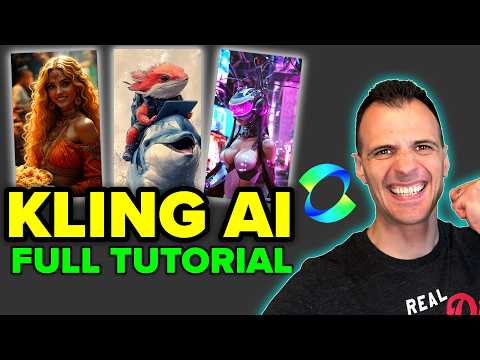
 Kling AI
Demo summary
The creator reviews the final video outputs for both the text-to-video helicopter prompt and the animated bird image, evaluating the motion quality and visual consistency.
Step-by-step
- Click Generate to start the video creation process
- Preview the generated helicopter scene to check for camera movement and visual style
- Review the animated bird scene to evaluate wing flapping and motion consistency
- Use the Extend function if you need to make a specific scene longer
Options
- Extend the scene to increase the video duration
Watch out for
- Beaks or small details may slightly change shape or morph as the video progresses
Tips
- Check that the final output maintains the specific artistic style requested in the prompt
- Use these generated scenes in larger projects like cartoons where minor visual artifacts are less noticeable to viewers
Highlights
“in general the quality is great everything is animated the style is maintained”
All demos from “How to Use Kling AI (Tutorial): Free High Quality AI Video Generator”
- 1:052:32Generate AI video from text with Kling AIThe user demonstrates how to input a detailed cinematic prompt into Kling AI, adjusting settings for lens style, creativity levels, and aspect ratio to generate a futuristic helicopter video.Kling AI· Text to Video
- 3:371:02Animate images using Kling AI Motion BrushThe video shows how to upload a starting image and use the Motion Brush tool in Kling AI to mask specific areas and define a movement path for birds in a cartoon scene.Kling AI· Image to Video
- 4:391:12Reviewing Kling AI video generation resultsCurrentThe creator reviews the final video outputs for both the text-to-video helicopter prompt and the animated bird image, evaluating the motion quality and visual consistency.Kling AI· AI Video Generator
- 5:530:55AI Virtual Try-On with Kling AIThe user demonstrates the AI Virtual Try-On feature by uploading a personal photo and selecting a garment from the library to see how the tool realistically overlays the clothing.Kling AI· AI Clothing Try-on
- 6:480:39Text-to-image generation in Kling AIThe demonstration shows entering a complex descriptive prompt into Kling AI's text-to-image tool to generate high-quality, realistic portraits with specific lighting effects.Kling AI· Text to Image
- Watch “How to Use Kling AI (Tutorial): Free High Quality AI Video Generator” →
AI Video Generator
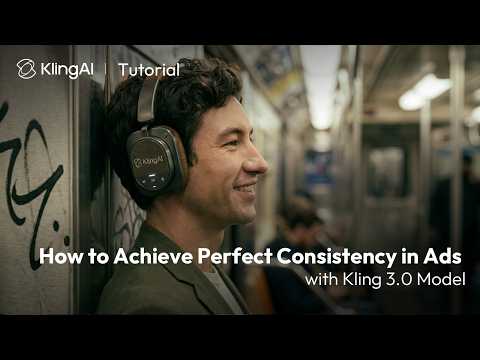 0:240:26Maintain subject consistency in Kling 3.0The video demonstrates how to use the 'bind elements' and 'AI multi-shot' features in Kling 3.0 to keep products and characters consistent by uploading start/end frames and multiple renders.Kling AI
- 0:500:17Keep logos and text consistent with Kling 3.0The user shows how to maintain readable logos on products by binding the subject and using specific prompt instructions within the Kling AI interface.Kling AI
 4:280:42Generate AI video with sound effectsThe user demonstrates enabling the 'Audio' toggle in the desktop site version of the tool to generate a video that includes synchronized AI-generated sound effects.Vikash Ai Pro
  2:400:13Generate multi-shot video cuts in Kling 3.0The user demonstrates how to enable the multi-shot toggle in Kling 3.0 to automatically create a cinematic cut in the middle of a generated clip.Kling AI
- 4:391:12Reviewing Kling AI video generation resultsCurrentThe creator reviews the final video outputs for both the text-to-video helicopter prompt and the animated bird image, evaluating the motion quality and visual consistency.Caffeinated Blogger