AnyEnhancer: Repair facial features with Face Restoration
 AnyEnhancer
Demo summary
This clip shows the Face Restoration tool in AnyEnhancer identifying and sharpening eyes, skin texture, and other facial features in blurry videos.
Step-by-step
- Import the video file you want to process
- Select the Face Restoration tool
- Choose between Fast mode or Quality mode
- Click the Preview button to see the restoration effect
- Click the Exit Preview button to return to the main interface
- Click the Export button to save the optimized file to your computer
Options
- Fast mode for quicker processing with standard results
- Quality mode for detailed restoration with slower processing speeds
Watch out for
- Quality mode results in slower processing speeds
Tips
- Be patient during the preview process as it takes time to process the video
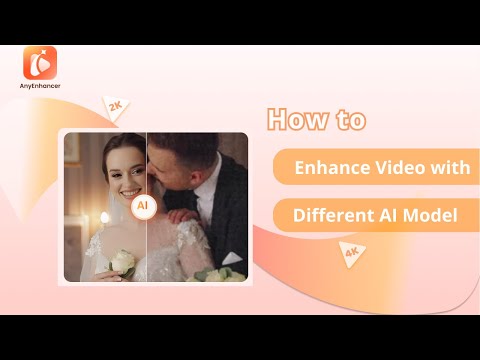
All demos from “AnyEnhancer: Enhance Video with Different AI Models”
- 0:411:02Upscale video resolution with Intelligent EnhancementThe video demonstrates using AnyEnhancer's Intelligent Enhancement model to refine facial details and upscale video resolution to 2K or 4K.AnyEnhancer· AI Video Upscaler
- 1:430:59Increase video clarity with Resolution EnhancementAnyEnhancer is shown processing low-resolution footage to increase clarity and detail using its dedicated Resolution Enhancement AI.AnyEnhancer· AI Video Upscaler
- 2:420:49Repair facial features with Face RestorationCurrentThis clip shows the Face Restoration tool in AnyEnhancer identifying and sharpening eyes, skin texture, and other facial features in blurry videos.AnyEnhancer· AI Video Enhancer
- 3:310:37Colorize grayscale video with AnyEnhancerThe Colorize model is demonstrated adding realistic color to black and white video sequences within the AnyEnhancer interface.AnyEnhancer· AI Video Enhancer
- 4:080:42Improve video vibrancy with Color EnhancementThe demonstration shows how to use the Color Enhancement model to adjust and enrich video colors for a more vivid and balanced look.AnyEnhancer· AI Video Enhancer
- 4:500:43Remove grain and artifacts with Denoise ModelAnyEnhancer's Denoise model is shown removing unwanted noise and grain from low-light video footage to improve clarity.AnyEnhancer· AI Video Enhancer
- 5:330:44Smooth video motion with Frame InterpolationThe video demonstrates using 2x and 4x Frame Interpolation in AnyEnhancer to create smoother transitions in fast-moving video clips.AnyEnhancer· AI Video Interpolation
- Watch “AnyEnhancer: Enhance Video with Different AI Models” →
AI Video Enhancer
 1:121:00Remove video noise with AnyEnhancerThe user demonstrates uploading a grainy video to AnyEnhancer, selecting the 'Denoise' option, and generating a preview to show the AI-driven noise reduction results.iMobie - Multimedia
 1:440:19Colorize video with AnyEnhancerThe creator demonstrates how to select a video frame and apply the Colorize function in AnyEnhancer to preview a 3-second colorized sample of a video.VideoEditOz
- 2:031:09Face restoration on VHS footageThe user imports a 1982 VHS clip into AnyEnhancer, uses the timeline to select a section with unrecognizable faces, and applies the Face Restoration model to sharpen the details.VideoEditOz
- 4:320:45Remove video noise with AnyEnhancerThe creator shows a noisy wedding video filmed in low light and applies the Denoise function in AnyEnhancer to clean up grain on a black jacket.VideoEditOz
- 2:420:49Repair facial features with Face RestorationCurrentThis clip shows the Face Restoration tool in AnyEnhancer identifying and sharpening eyes, skin texture, and other facial features in blurry videos.iMobie Support
- 3:310:37Colorize grayscale video with AnyEnhancerThe Colorize model is demonstrated adding realistic color to black and white video sequences within the AnyEnhancer interface.iMobie Support
- 4:080:42Improve video vibrancy with Color EnhancementThe demonstration shows how to use the Color Enhancement model to adjust and enrich video colors for a more vivid and balanced look.iMobie Support
- 4:500:43Remove grain and artifacts with Denoise ModelAnyEnhancer's Denoise model is shown removing unwanted noise and grain from low-light video footage to improve clarity.iMobie Support
 3:550:49Increase video frame rate with AnyEnhancerThe user demonstrates applying 4X frame interpolation to a movie clip in AnyEnhancer to achieve a smoother 96 FPS output.Btech
- 4:440:21Enhance video colors and saturation with AnyEnhancerThe demonstration shows applying the color enhancement tool in AnyEnhancer to boost saturation and brightness on an old anime clip.Btech