Remove video noise with AnyEnhancer

 AnyEnhancer
Demo summary
The user demonstrates uploading a grainy video to AnyEnhancer, selecting the 'Denoise' option, and generating a preview to show the AI-driven noise reduction results.
Step-by-step
- Open AnyEnhancer and click the upload button
- Select the video file you want to denoise
- Choose the Denoise option from the interface
- Select a 3 or 5 second clip for the preview
- Click Preview and wait for the AI processing to complete
- Exit the preview and click Export
- Adjust the parameters and start the export process
Options
- Select between a 3-second or 5-second clip for the preview
Tips
- Use the preview function to check changes before committing to a full export
Highlights
“The step is simple. Just choose the den noiseise option.”
All demos from “How to Remove Noise from Videos Automatically: AI Denoise Tutorial with AnyEnhancer”
- 1:121:00Remove video noise with AnyEnhancerCurrentThe user demonstrates uploading a grainy video to AnyEnhancer, selecting the 'Denoise' option, and generating a preview to show the AI-driven noise reduction results.AnyEnhancer· AI Video Enhancer
- 2:220:16Enhance facial details and color in AnyEnhancerThe video briefly shows the application of the Face Restoration and Colorize tools within AnyEnhancer to improve visual clarity and color balance.AnyEnhancer· AI Image/Photo Enhancer
- Watch “How to Remove Noise from Videos Automatically: AI Denoise Tutorial with AnyEnhancer” →
AI Video Enhancer
- 1:121:00Remove video noise with AnyEnhancerCurrentThe user demonstrates uploading a grainy video to AnyEnhancer, selecting the 'Denoise' option, and generating a preview to show the AI-driven noise reduction results.iMobie - Multimedia
 1:440:19Colorize video with AnyEnhancerThe creator demonstrates how to select a video frame and apply the Colorize function in AnyEnhancer to preview a 3-second colorized sample of a video.VideoEditOz
- 2:031:09Face restoration on VHS footageThe user imports a 1982 VHS clip into AnyEnhancer, uses the timeline to select a section with unrecognizable faces, and applies the Face Restoration model to sharpen the details.VideoEditOz
- 4:320:45Remove video noise with AnyEnhancerThe creator shows a noisy wedding video filmed in low light and applies the Denoise function in AnyEnhancer to clean up grain on a black jacket.VideoEditOz
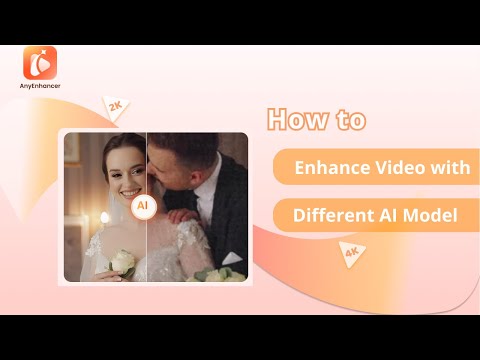 2:420:49Repair facial features with Face RestorationThis clip shows the Face Restoration tool in AnyEnhancer identifying and sharpening eyes, skin texture, and other facial features in blurry videos.iMobie Support
- 3:310:37Colorize grayscale video with AnyEnhancerThe Colorize model is demonstrated adding realistic color to black and white video sequences within the AnyEnhancer interface.iMobie Support
- 4:080:42Improve video vibrancy with Color EnhancementThe demonstration shows how to use the Color Enhancement model to adjust and enrich video colors for a more vivid and balanced look.iMobie Support
- 4:500:43Remove grain and artifacts with Denoise ModelAnyEnhancer's Denoise model is shown removing unwanted noise and grain from low-light video footage to improve clarity.iMobie Support
 3:550:49Increase video frame rate with AnyEnhancerThe user demonstrates applying 4X frame interpolation to a movie clip in AnyEnhancer to achieve a smoother 96 FPS output.Btech
- 4:440:21Enhance video colors and saturation with AnyEnhancerThe demonstration shows applying the color enhancement tool in AnyEnhancer to boost saturation and brightness on an old anime clip.Btech