Reve AI: Granular object editing in REVE
 Reve AI
Demo summary
The video shows REVE's 'Edit' mode, which breaks an image into selectable components (faces, clothing) to apply specific changes like adding sunglasses or changing shirt colors.
Step-by-step
- Click on the Edit button at the top of the interface
- Expand the subject categories to view specific components like faces or clothing
- Click the pencil icon next to the specific component you wish to modify
- Edit the text description to include the desired changes
- Click the check mark to queue the edit
- Click Apply Edits to process all changes simultaneously
Options
- Click on Prompt to view the full detailed AI-generated description of the image
- Edit the entire subject if specific sub-components like clothing are not automatically broken out
Tips
- Use the automatically generated descriptions as a base for your modifications to ensure consistency
Highlights
“Let me show you another way to edit this image that nobody else is doing.”
All demos from “Still another "Best" AI Image generator? Try Reve!”
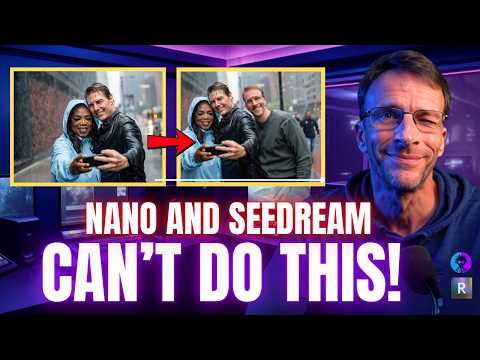
- 1:210:43Generate celebrity likeness with REVEThe user demonstrates REVE's ability to generate high-fidelity images of celebrities like Oprah Winfrey and Tom Cruise from a text prompt.Reve AI· AI Realistic Image Generator
- 2:040:19Photobomb an image using reference uploadsThe demonstrator uploads a personal photo and uses a chat command to 'photobomb' the previously generated celebrity image using REVE.Reve AI· AI Image Combiner
- 2:270:18Change image background via chatThe user changes the background of an existing AI generation from a rainy street to a beach by typing a simple natural language instruction in REVE.Reve AI· AI Background Generator
- 2:451:10Granular object editing in REVECurrentThe video shows REVE's 'Edit' mode, which breaks an image into selectable components (faces, clothing) to apply specific changes like adding sunglasses or changing shirt colors.Reve AI· AI Inpainting
- 4:230:21Apply specific artistic stylesThe demonstrator converts an existing image into a caricature style by referencing a specific artist (Ralph Steadman) within the REVE chat interface.Reve AI· AI Style Transfer
- 4:441:10Complex scene building and character insertionREVE is shown researching historical references for Elizabeth Taylor and 50s diners to create a scene, then inserting Big Bird into the background via chat.Reve AI· AI Inpainting
- 7:440:21Consistent character hairstyle and pose editingThe user demonstrates modifying a specific person's hairstyle and hand pose while maintaining facial consistency using REVE's image-to-image capabilities.Reve AI· AI Inpainting
- 8:140:24Virtual try-on and clothing transferThe demonstrator copies a dress from a Pinterest image and uses REVE to apply that specific clothing onto a character in a different generated image.Reve AI· AI Clothing Try-on
- 10:280:24Manual object repositioning in AI imagesThe user demonstrates REVE's unique ability to select a generated object (like a character or a sign) and manually move or resize it on the canvas before re-rendering.Reve AI· AI Inpainting
- Watch “Still another "Best" AI Image generator? Try Reve!” →
AI Inpainting
 4:020:09Edit hair color with Reve 2.0A quick demonstration of selecting a subject's hair in a portrait and using a text prompt to change the color to red.AI Biceps
- 4:360:16Precise object replacement in Reve 2.0The spotlight tool is used to highlight a camera in a poster and replace it with a different camera model uploaded from the internet.AI Biceps
- 2:451:10Granular object editing in REVECurrentThe video shows REVE's 'Edit' mode, which breaks an image into selectable components (faces, clothing) to apply specific changes like adding sunglasses or changing shirt colors.Bob Doyle Media
- 4:441:10Complex scene building and character insertionREVE is shown researching historical references for Elizabeth Taylor and 50s diners to create a scene, then inserting Big Bird into the background via chat.Bob Doyle Media
- 7:440:21Consistent character hairstyle and pose editingThe user demonstrates modifying a specific person's hairstyle and hand pose while maintaining facial consistency using REVE's image-to-image capabilities.Bob Doyle Media
- 10:280:24Manual object repositioning in AI imagesThe user demonstrates REVE's unique ability to select a generated object (like a character or a sign) and manually move or resize it on the canvas before re-rendering.Bob Doyle Media
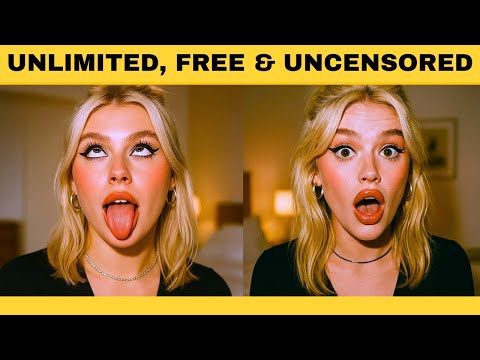 4:121:00Edit facial expressions and outfits with Reve AIThe user uploads an image to Reve AI and demonstrates modifying the subject's expression to a smile and adjusting outfit details while keeping the face shape and identity consistent.Emmanuel Adewuyi
 2:263:56Edit image elements and backgrounds in Reve AIThe presenter shows how to change background colors, add new elements like butterflies and wagons using image references, and modify clothing colors on a specific model.Creative AI Show
- 6:310:57Add objects to existing images with Reve AIThe user uploads a photo of a chef and uses a text prompt to successfully add meatballs to a plate of spaghetti within the image.Creative AI Show
 4:081:00Edit uploaded photos and facial expressions with ReveThe user uploads a custom photo to Reve and uses text prompts to modify the image, such as making the subject smile and changing the background while keeping the person's identity consistent.WealthWise
 5:560:45Using 'Instruct' to modify generated imagesThe creator uses the 'Instruct' tool to request specific changes, such as making text bigger and bolder, and shows how the model regenerates the image while maintaining the original composition.Philip Anders