GenTube: Using Chain Blocks for character and scene building
 GenTube
Demo summary
The demonstration covers 'chain blocks' to define subjects and places (like a city or beach) to maintain consistency across generated images.
Step-by-step
- Click on Create Block on the right-hand side
- Name your block and add a description
- Choose a type from the dropdown, such as Subject, Place, Emoji, or Style
- Click Create Subject to generate and save the block
- Select a saved block or a block created by others to apply it to your image
- Select a different Place block to change the character's environment
Options
- Choose Place types like city, beach, nightclub, or nature
- Select Emoji blocks to reflect specific moods or energy
- Apply Style blocks such as female attraction, HDR, or 4K
Watch out for
- Ensure the prompt bar is empty before creating a block to prevent mixing prompts
Tips
- Combine Style blocks with your prompts for cinematic results
All demos from “Gentube Review: FREE Unlimited AI Image Generator - Better Than MidJourney?”
- 1:121:01Generate and refine AI images with GentubeThe creator demonstrates entering text prompts for a 'beautiful girl' and using the 'refine prompt' and 'regenerate' buttons to iterate on the AI-generated results.GenTube· Text to Image
- 2:130:26Apply visual styles using sliders in GentubeThe video shows how to use style sliders to transform an image into various aesthetics like watercolor, cyberpunk, and pixel art.GenTube· AI Style Transfer
- 2:390:25Adjusting aspect ratios in GentubeThe user demonstrates changing the output dimensions of the AI image using the aspect ratio icon, selecting between 1:1, 16:9, and other formats.GenTube· AI Crop Image
- 4:131:31Using Chain Blocks for character and scene buildingCurrentThe demonstration covers 'chain blocks' to define subjects and places (like a city or beach) to maintain consistency across generated images.GenTube· AI Image Generator
- 5:440:52Testing Gen Style presets on a vintage car promptThe video shows the 'gen style' feature being applied to a prompt of a vintage car, switching between realistic, watercolor, and cyberpunk styles.GenTube· AI Style Transfer
- Watch “Gentube Review: FREE Unlimited AI Image Generator - Better Than MidJourney?” →
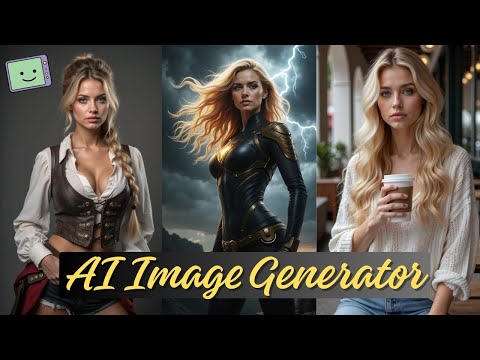
AI Image Generator
 1:462:29Generate AI images using the block system in GenTubeThe creator demonstrates how to use GenTube's block system to select art styles, locations (like Jade City), and subjects (like a steampunk woman) to generate high-quality images in seconds.Desire
 2:341:17Using the GenTube 'Swiping' slot machine interfaceThe video shows a unique UI in GenTube where users can lock specific attributes like lighting or layout and 'swipe' to randomly generate new variations of an image.Dom the AI Tutor | Tech Tutor Zones
- 4:040:23Enhancing prompts with the Beautify toolThe user demonstrates the 'beautify' feature in GenTube, which automatically expands a simple prompt into a more detailed, high-quality version to improve the output image.Dom the AI Tutor | Tech Tutor Zones
- 6:220:42Remixing community images in GenTubeThe user explores the community feed, selects an image created by another user, and uses the 'play' and 'remix' functions to modify it with new prompt elements.Dom the AI Tutor | Tech Tutor Zones
- 4:131:31Using Chain Blocks for character and scene buildingCurrentThe demonstration covers 'chain blocks' to define subjects and places (like a city or beach) to maintain consistency across generated images.Fahed Zaman
 5:060:32Using Gentube creation menu and style filtersThe demonstration shows the creation bar where users enter prompts and select parameters such as city, place, and time to refine AI image results.Mr Raza
 9:330:34Beautifying prompts with LLM enhancementThe 'beautify your image' feature is shown, which uses a backend LLM to expand a simple prompt like 'sports car' into a highly detailed, lengthy prompt for better results.SECourses