Generating a multi-scene video with VidGuy Companion

 VidGuy
Demo summary
The creator shows the workflow section of VidGuy, using a chat companion to generate a multi-scene sequence of a cat and explaining how to run the render process.
Step-by-step
- Navigate to the Workflow section
- Enter a prompt into the VidGuy Companion chat requesting a multi-scene clip
- Wait for the agent to research and generate the sequence
- Click Run All to populate the image and video boxes
- Wait for the system to render the final combined clip
Watch out for
- You must wait for the AI agent to complete its research and processing before the sequence is generated
Tips
- Specify the duration and specific actions in your prompt, such as '60 seconds of my cat playing with different toys'
Highlights
“now what I could do quite simply is just run all and it would actually start populating the image boxes and then the video ones and then bring them all into one clip”
All demos from “Flora AI Review 2026 - Features, Pricing & Alternative”
- 3:560:51Generating a multi-scene video with VidGuy CompanionCurrentThe creator shows the workflow section of VidGuy, using a chat companion to generate a multi-scene sequence of a cat and explaining how to run the render process.VidGuy· Script To Video AI Generator
- 5:490:38Quick-creating a 30-second AI script and videoThe user demonstrates the 'Quick Create' feature in VidGuy by selecting an actor, choosing a video format, and using a prompt to generate a 30-second script.VidGuy· Script To Video AI Generator
- Watch “Flora AI Review 2026 - Features, Pricing & Alternative” →
Script To Video AI Generator
- 3:560:51Generating a multi-scene video with VidGuy CompanionCurrentThe creator shows the workflow section of VidGuy, using a chat companion to generate a multi-scene sequence of a cat and explaining how to run the render process.VidGuy
- 5:490:38Quick-creating a 30-second AI script and videoThe user demonstrates the 'Quick Create' feature in VidGuy by selecting an actor, choosing a video format, and using a prompt to generate a 30-second script.VidGuy
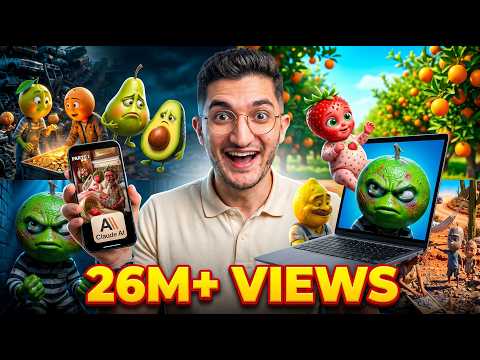 1:390:46Create fruit drama animations with VidGuyThe user navigates to the VidGuy interface (referred to as Pictory.ai in transcript), selects the 'fruit drama' format, pastes the script from Claude, and initiates the video generation process.VidGuy
 6:231:28Create automated video workflows with AIThe creator uses the VidGuy companion to build a multi-scene video workflow by describing a character cooking dinner, which the AI then outlines and connects into a repeatable system.VidGuy
 2:500:40Generate a 30-second AI video script and clipThe narrator walks through the 'Quick Create' section, selecting a format and actor, and then uses a prompt to automatically generate a 30-second script for a video clip.VidGuy