Editing notes and rebuilding beats in RipX

 RipX
RipX
Demo summary
The user demonstrates repitching a kick drum to create a double kick and rewriting a bassline by adding accent notes directly within the spectral interface.
Step-by-step
- Select a kick drum note in the spectral interface
- Copy and paste the note to create a double kick effect
- Repitch the copied note if desired
- Navigate to the bass track
- Add accent notes directly into the interface to rewrite the bassline
Options
- Rebuild the entire beat within the software
- Repitch existing elements to change the melody or rhythm
Tips
- Use accent notes to add complexity to simple basslines
Highlights
“and that's just the beginning so to show you how far you can really take”
All demos from “MAKING MUSIC with RipX the A.I. DAW”
- 0:471:29Stem separation with RipXThe creator drops a song into RipX and selects options to separate it into voice, bass, drums, guitar, and piano stems, then solos the drum track to show the result.RipX· AI Vocal Remover & Stem Splitter
- 2:270:51Editing notes and rebuilding beats in RipXCurrentThe user demonstrates repitching a kick drum to create a double kick and rewriting a bassline by adding accent notes directly within the spectral interface.RipX· AI Audio Editor
- 3:332:08Time stretching and scale snapping in RipXThe creator shows how to copy, paste, and stretch audio notes while using the scale tool to snap notes to F melodic minor.RipX· AI Audio Editor
- 5:410:37Exporting audio to MIDIThe user demonstrates the export process in RipX, rendering stems as MIDI files and importing them into Ableton Live.RipX· AI Melody & MIDI Generator
- 7:470:41Drawing pitch curves on audioThe user joins multiple audio notes into a single editable object and draws a custom pitch curve to create a sliding pitch effect.RipX· AI Audio Editor
- 8:560:58Applying patterns and formant modulationThe creator applies a sine wave pattern to the formant and panning settings of an audio selection and deletes individual spectral partials.RipX· AI Audio Editor
- Watch “MAKING MUSIC with RipX the A.I. DAW” →
AI Audio Editor
 9:091:07Editing audio notes and adding harmoniesThe user demonstrates hands-on editing by changing note timing, deleting unwanted artifacts, duplicating vocal lines to create harmonies, and applying localized delay effects.Ryuichiro Yamaki
 8:090:43Straightening vocal pitch in RipX DAW ProThe user selects the vocal track and applies the 'Straighten Pitch' tool to demonstrate how the software manipulates the audio notes.DJ/PRODUCER K-DEF
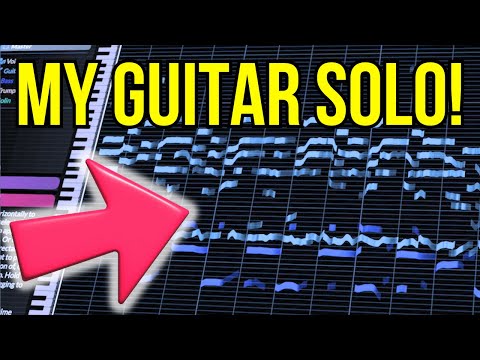 7:191:35Correcting pitch and deleting notesUsing the 'Flatten Pitch' effect and manual dragging, the user demonstrates how to fix sharp notes and delete unwanted overtones directly in the RipX DAW timeline.Hayes Griffin
 - 9:391:36Editing vocal phrasing with the split toolThe user demonstrates using the split/cutter tool to isolate a specific word in a vocal track and shorten its duration to change the phrasing.Hayes Griffin
- 2:270:51Editing notes and rebuilding beats in RipXCurrentThe user demonstrates repitching a kick drum to create a double kick and rewriting a bassline by adding accent notes directly within the spectral interface.Official AHEE
- 3:332:08Time stretching and scale snapping in RipXThe creator shows how to copy, paste, and stretch audio notes while using the scale tool to snap notes to F melodic minor.Official AHEE
- 7:470:41Drawing pitch curves on audioThe user joins multiple audio notes into a single editable object and draws a custom pitch curve to create a sliding pitch effect.Official AHEE
- 8:560:58Applying patterns and formant modulationThe creator applies a sine wave pattern to the formant and panning settings of an audio selection and deletes individual spectral partials.Official AHEE
 1:161:36Adjusting levels and swapping instruments in RipX DAW ProThe creator demonstrates how to isolate a kick drum layer, adjust its volume fader, and then replace the original kick sound with a 909 sample in real-time using RipX DAW Pro.Home Studio Simplified
- 6:560:20Customizing the RipX DAW Pro UIA brief walkthrough of the interface management where the user toggles various panels like 'rips', 'layers', and 'interactive help' to clean up the workspace.Home Studio Simplified
 3:500:29Applying delay effects to audio stemsThe presenter applies a quarter-note delay effect to a specific audio selection within the RipX interface.Doctor Mix
- 6:320:45Looping and reversing drum patternsThe presenter demonstrates how to select drum and percussion stems, duplicate them to create a loop, and apply a reverse effect.Doctor Mix