AI Mastering with Distrokid Mixea
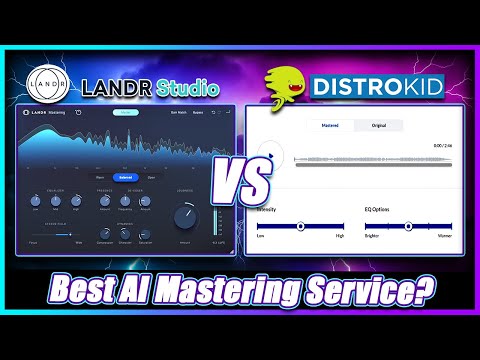

Demo summary
The creator uploads an unmastered track to the Mixea web interface and demonstrates the Intensity and EQ sliders to adjust the final sound.
Step-by-step
- Sign into DistroKid and navigate to the Mixea app
- Upload the unmastered version of your track
- Toggle between Mastered and Original to compare the audio
- Adjust the Intensity slider to control the compression and thickness
- Select an EQ preset from the available options
- Click Download master track
Options
- Choose between Warmer, Neutral, or Brighter EQ settings
- Adjust Intensity from low to high ('squishy') levels
Watch out for
- The interface does not feature gain matching, making the mastered version significantly louder than the original during comparison
Tips
- Use the Brighter EQ setting to bring in better clarity
- Keep the Intensity slider in the middle for the most balanced sound
- Don't rely on the visual waveform; listen to the actual audio changes
Highlights
“It's a very convenient option”
All demos from “Landr Mastering Plugin vs. Distrokid Mixea: Which is the BEST AI Mastering Service?”
- 1:184:01Mastering a track with Landr Mastering PluginThe creator demonstrates using the Landr Mastering Plugin within a DAW, adjusting settings like Warmth, EQ, Stereo Field, and Saturation while hearing real-time changes.Landr· AI Mastering
- 5:271:30AI Mastering with Distrokid MixeaCurrentThe creator uploads an unmastered track to the Mixea web interface and demonstrates the Intensity and EQ sliders to adjust the final sound.MMixea· AI Mastering
- Watch “Landr Mastering Plugin vs. Distrokid Mixea: Which is the BEST AI Mastering Service?” →

AI Mastering
- 5:271:30AI Mastering with Distrokid MixeaCurrentThe creator uploads an unmastered track to the Mixea web interface and demonstrates the Intensity and EQ sliders to adjust the final sound.Simulation Beats
 7:100:34Mastering with Mixea by DistroKidThe user demonstrates the Mixea interface, adjusting the brightness and intensity sliders to modify the master before downloading.Orpheus Audio Academy
 2:320:14Adjusting mastering settings in MixeaThe user shows the browser-based Mixea interface, specifically demonstrating the limited control sliders for EQ (bright to warm) and intensity.Real Home Studio