Testing instructional prompting in Mureka

 Mureka
Demo summary
The creator attempts to use square bracket instructions (like [instrumental hit]) within the lyrics field to see if Mureka's AI follows the commands or sings them literally.
Step-by-step
- Open the lyrics field in Mureka.
- Insert square brackets around structural labels like Verse or Chorus.
- Insert square brackets around specific instrumental instructions like [instrumental hit] or [sub bass drop].
- Generate the song to test if the AI follows the commands or sings them.
Options
- Use standard square brackets for structural markers
- Use code-style brackets for instructions
Watch out for
- Mureka often sings out instrumental instructions literally instead of executing them as musical commands.
- Instructional prompting for specific sound effects like 'sub bass drop' or 'kickstart' does not currently work as intended.
Tips
- Stick to using brackets for 'Chorus' or 'Verse' as the AI typically accepts these without singing them.
- Avoid spending hours on complex instructional prompting within the lyrics field as the system currently reads them out as vocals.
Highlights
“I spent hours trying to get instructions within the song... It was just reading them out.”
AI Song Generator
 3:200:57Custom music generation with lyrics and voice selectionThe demonstrator selects a specific AI voice persona ('Bruce'), uses the built-in AI lyric generator to write a song about a 'typical day in the sunshine', and sets the style to 'pop catchy and warm' before creating the track.Music Tech Info
 4:011:27Create an R&B soul song with lyricsThe creator demonstrates generating an R&B soul song about love by interacting with the AI co-writer and reviewing the vocal and audio quality of the output.MoneOnDaBeat
- 6:440:56Custom mode: 90s boom bap and lyric generationThe user demonstrates Mureka's custom mode by entering specific instrument tags for a 90s boom bap track and using the 'Generate Lyrics' tool for a song about overcoming poverty.MoneOnDaBeat
 0:482:02Generate a custom song with Mureka AIThe user demonstrates the 'Custom Mode' in Mureka AI, showing how to generate lyrics from a prompt, select a cinematic style, and choose vocal settings to create a full track.AiMinds
 1:412:29Generate a song with lyrics in Mureka AIThe user demonstrates how to generate lyrics from a theme, select a 'trap soul' style and female vocal, and then plays the resulting AI-generated song in Mureka AI.MoneOnDaBeat
 2:580:33Create custom indie pop with Mureka Custom ModeThe user navigates to Custom Mode and enters a detailed prompt for an upbeat indie pop song with specific vocal and production requirements.Create With AI (Zero to AI Hero)
 2:531:20Create custom rap songs using ChatGPT and Mureka AIThe user generates rap lyrics in ChatGPT, pastes them into Mureka AI's custom tab, selects 'trap rap' and 'hip hop' styles, and generates a vocal track.Mikkel Lassalle
 1:011:12Generate a cinematic pop song with Mureka AIThe creator demonstrates the 'text to song' feature in Mureka by inputting a detailed prompt formula including mood, genre, instruments, and vocal style to generate an emotional cinematic track.BMF MEDIA
- 2:220:50Refining AI music with specific imagery promptsThe user shows how to tweak a generated song in Mureka by replacing generic lyrics like 'the storm' with specific imagery like 'silver rain' to create a more distinct musical world.BMF MEDIA
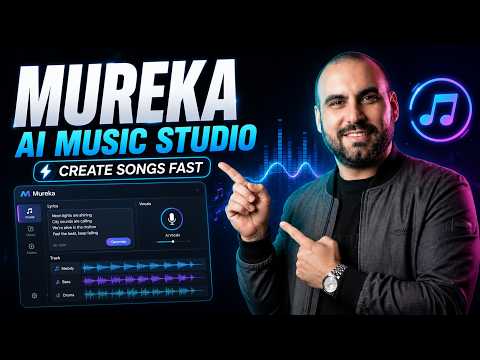 0:493:24Generate custom AI music with MurekaThe user demonstrates the 'Custom' creation mode in Mureka, uploading a video reference, selecting a vocal character named Andreo, and using the 'Optimize' tool to generate song lyrics about Tijuana City.SaaS Master
 4:060:54Generate a song using Mureka AI Easy ModeThe user demonstrates the 'dice' feature in Easy Mode to generate a fresh song idea and then executes the creation process using the O2 model.AI With TechZnap
- 5:101:31Create a custom song with lyrics in Mureka AIThe user demonstrates Custom Mode in the V7.6 model by pasting lyrics, setting a 'lo-fi hiphop' style, and using the AI to optimize and expand the lyrics before generating the final track.AI With TechZnap