Veed: Image-to-video generation with Kling Free Pro
 Veed
Veed
Demo summary
Using VEED's video feature, the user uploads a previously generated image and uses the Kling Free Pro model to animate the character lifting a smartphone and talking.
Step-by-step
- Navigate to the video feature in VEED
- Select the Kling Free Pro model from the available options
- Upload the image you wish to animate
- Enter a descriptive prompt for the character's movement and speech
- Generate the video
Options
- Add additional images to the generation process
- Use different top-tier models beyond Kling Free Pro
Tips
- Include specific details in your prompt like eye contact or hand gestures for more accurate results
Highlights
“Not only the mouth movement, the gestures, also the smartphone details are just accurate. It's just awesome.”
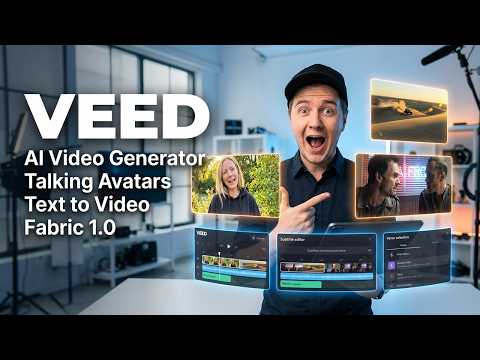
All demos from “VEED – AI Video Generator with Talking Avatars & Text-to-Video (Fabric 1.0)”
- 0:340:55Create a talking AI avatar with VEEDThe user selects a character named Wiki, inputs text, chooses a voice, and generates a video with realistic lip-syncing and mouth movement using VEED's AI avatar feature.Veed· AI Avatar Video Generator
- 1:390:23Animate an avatar with custom audio in VEEDThe demonstration shows uploading a custom audio clip to VEED to drive the lip-sync and animation of an AI avatar character.Veed· AI Avatar Video Generator
- 2:170:36Generate AI images in VEEDThe user demonstrates the AI image generator by entering a prompt for a young creator holding a smartphone and generating four realistic variations.Veed· Text to Image
- 2:530:36Image-to-video generation with Kling Free ProCurrentUsing VEED's video feature, the user uploads a previously generated image and uses the Kling Free Pro model to animate the character lifting a smartphone and talking.Veed· Image to Video
- Watch “VEED – AI Video Generator with Talking Avatars & Text-to-Video (Fabric 1.0)” →
Image to Video
 9:481:19Convert AI images to videoThe user demonstrates the 'make video' feature by animating a previously generated static image using the Clean 3 Pro model.AI Guy
- 2:530:36Image-to-video generation with Kling Free ProCurrentUsing VEED's video feature, the user uploads a previously generated image and uses the Kling Free Pro model to animate the character lifting a smartphone and talking.Eigi and AI
 8:331:11Control camera movement in AI animations with VeedThe creator demonstrates Veed's image-to-video tool, specifically showing how to use separate prompts for animation and camera movement (pans, dollies, orbits) to control the final output.Malva AI
 3:510:31Animate complex photos with VEED Fabric 1.0A demonstration of animating a photo of a person holding a cat, showing how the AI handles realistic movement of both the subject and the animal.Mike Dee
 1:090:42Generate 15-second AI video with Wan 2.6The user demonstrates how to use the Wan 2.6 model within VEED by uploading a reference image, selecting the model, and entering a detailed text prompt to generate a video.VEED STUDIO
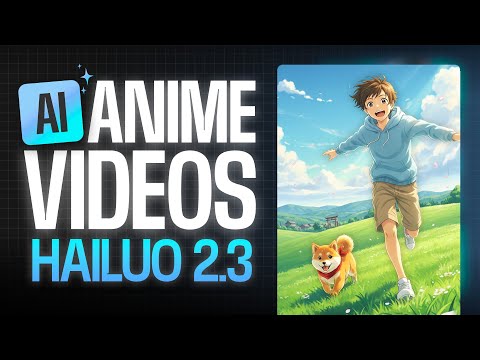 1:290:39Animate images using Hailuo 2.3 in VEEDThe video shows the process of uploading a reference image to the VEED AI playground, selecting the Hailuo 2.3 model, and entering a motion prompt to generate a 10-second anime video.VEED STUDIO
 6:300:20Animate images with VEED Fabric 1.0The video shows how to upload a static character image into VEED Fabric 1.0 to generate a talking video with realistic movement and audio.AI Master