Generate an anime character with DomoAI

 DomoAI
Demo summary
The user demonstrates how to generate a character image using the 'Enhanced Anime' model in DomoAI, including prompt optimization and setting the aspect ratio.
Step-by-step
- Open the AI image tool
- Enter your character concept prompt
- Select the 'Enhanced Anime' model
- Click the 'AI optimize' button to automatically adjust the prompt
- Set the aspect ratio to 16:9
- Select the image option
- Check the watermark box to remove the watermark from the final image
- Create the task and wait for the generation to complete
- Select your preferred variation from the results
Options
- Choose from other models like FXV1, realistic, dark gothic, or cosmic illustration
- Switch to 'Relax Mode' to test the output
- Download the image or save it to the platform
Tips
- Use the 'Enhanced Anime' model for a richer, more polished anime look
- Use the 'AI optimize' button to let the system improve your initial prompt
- Set the ratio to 16:9 if you are creating content for a YouTube format
Highlights
“The platform instantly generated several variations and you can pick the one you like best.”
All demos from “DomoAI Tutorial - 2026 | Bring an AI Character to Life from 0 | How to Use DomoAI Video Generator”
- 1:181:24Generate an anime character with DomoAICurrentThe user demonstrates how to generate a character image using the 'Enhanced Anime' model in DomoAI, including prompt optimization and setting the aspect ratio.DomoAI· Text to Image
- 2:501:27Animate a static image using DomoAI Image to VideoThe creator shows how to upload a generated image and use the 'Advanced' model to add motion like hair blowing and camera movement.DomoAI· Image to Video
- 4:211:08Create a talking AI avatar in DomoAIThe video demonstrates syncing a generated video with a text-to-speech voice (Mia) to create a talking character with lip-sync.DomoAI· AI Avatar Video Generator
- 5:290:41Transform video style with DomoAI Video to VideoThe user applies the 'Sketch Animate' template to an existing video clip to completely change its visual style while maintaining the motion.DomoAI· Video to Video
- 6:190:52Merge multiple images using DomoAI Nano Banana ProThe demo shows how to combine three separate images (a girl, headphones, and a landscape) into a single cohesive scene using AI image editing.DomoAI· AI Image Combiner
- 8:131:41Generate a fitness promo with DomoAI Talking AvatarThe creator demonstrates turning a portrait image into a promotional video by generating a script, selecting a voice, and using the talking avatar tool for lip-syncing.DomoAI· AI Avatar Video Generator
- Watch “DomoAI Tutorial - 2026 | Bring an AI Character to Life from 0 | How to Use DomoAI Video Generator” →
Text to Image
- 1:181:24Generate an anime character with DomoAICurrentThe user demonstrates how to generate a character image using the 'Enhanced Anime' model in DomoAI, including prompt optimization and setting the aspect ratio.Dan - Smart Tutorials
 1:140:57Generate AI images with DomoAIThe user demonstrates how to use DomoAI's text-to-image feature, selecting between Fusion and Anime models to generate four unique image variations from a single prompt.Version 2.0
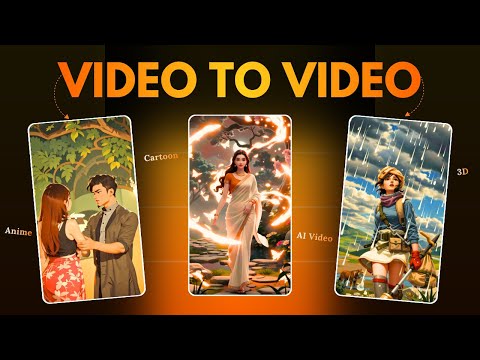 1:491:26Generate high-quality images with Domo AIThe user demonstrates how to select different image models like Realistic Anime or 3D Cartoon and generate cinematic images using text prompts in Domo AI.Hindi AI Gyaan