Convert video to anime style with DomoAI

 DomoAI
Demo summary
The creator demonstrates the video-to-video feature by uploading a clip, selecting an anime preset, and adjusting settings like 'more video' to maintain consistency with the original footage.
Step-by-step
- Click the video button
- Upload the video you wish to restyle
- Enter a prompt into the box on the left panel
- Click on Style and select a preset
- Choose the video duration
- Select either More Prompt or More Video under the Refer option
- Choose an aspect ratio
- Click the Generate button
Options
- Anime or illustration presets
- Lip sync feature to match mouth movements
- Screen keying to remove the background
- Subject only feature to style only the main character
- More Prompt vs More Video reference modes
Watch out for
- Longer video durations require more credits
Tips
- Use the More Video option if you want the output to look exactly like the original footage
- Use the Subject Only feature to move just the subject to another style
Highlights
“simply click the video button and from here upload a video you wish to restyle”
All demos from “Transform ANY Video to ANIMATION with AI! (DomoAI Tutorial)”
- 1:061:00Generate and upscale images with DomoAIThe user demonstrates how to use the text-to-image feature in DomoAI by selecting the Anime XL model, entering a prompt, and then upscaling the resulting image.DomoAI· AI Image Generator
- 2:060:51Animate static images using DomoAIThe video shows the process of uploading a static image to DomoAI, setting a duration and aspect ratio, and generating a lifelike animated motion clip.DomoAI· Image to Video
- 3:081:19Convert video to anime style with DomoAICurrentThe creator demonstrates the video-to-video feature by uploading a clip, selecting an anime preset, and adjusting settings like 'more video' to maintain consistency with the original footage.DomoAI· Video to Video
- 4:270:57Transfer motion to static images with AI MoveThe tutorial shows how to use the AI Move feature in DomoAI to combine a static character image with the motion from a separate video source while keeping the character's original features.DomoAI· Image to Video
- Watch “Transform ANY Video to ANIMATION with AI! (DomoAI Tutorial)” →
Video to Video
 5:290:41Transform video style with DomoAI Video to VideoThe user applies the 'Sketch Animate' template to an existing video clip to completely change its visual style while maintaining the motion.Dan - Smart Tutorials
 4:581:14Video-to-video style transfer with Domo AIThe creator demonstrates transforming an existing video into a 'soft toy' animation style using Domo AI's video-to-video feature.Paul J Lipsky
 6:110:43Video-to-Video style transfer with DomoAIThe user demonstrates the video-to-video feature by uploading a clip and applying a Japanese anime style preset to transform the visual aesthetic while maintaining the original movement.Daniel Davidson
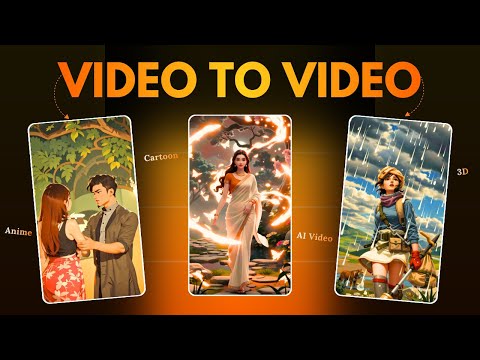 4:080:48Replace video characters with Domo AIA demonstration of the 'Character to Video' feature where a reference video and a character image (a bear) are used to replace the original subject in a scene.Hindi AI Gyaan
- 4:560:31Change video style with Domo AIThe user shows how to upload an existing video and apply a new visual style, such as 2.5D, to transform the footage using Domo AI.Hindi AI Gyaan
 3:010:30Convert video to anime style with DomoAIThe video shows the process of uploading a clip of a boxer and applying an anime style filter using DomoAI's video-to-video feature.Digital Product Wizard
- 3:081:19Convert video to anime style with DomoAICurrentThe creator demonstrates the video-to-video feature by uploading a clip, selecting an anime preset, and adjusting settings like 'more video' to maintain consistency with the original footage.AI Upskill