Midjourney: Upscaling, Zooming, and Panning
 Midjourney
Demo summary
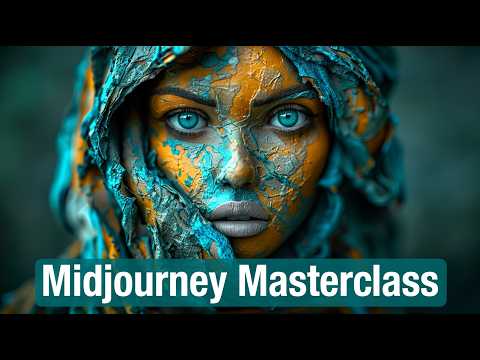
The video walks through using Creative Upscale to fix faces and the Reframe/Zoom tools to expand an image's canvas into new scenes.
Step-by-step
- Select 'Upscale Subtle' or 'Upscale Creative' to double the image size.
- Click 'Vary Subtle' or 'Vary Strong' to generate four new variations with different levels of composition changes.
- Use 'Reframe' to change the aspect ratio of the image.
- Click 'Start' or 'End' within Reframe to shift the image position and generate missing areas.
- Select 'Zoom' to expand the canvas up to 2x.
- Click 'Edit Prompt' while zooming or panning to influence the content of the expanded areas.
- Use the Pan arrows to expand the image in any direction.
Options
- Upscale Subtle to keep details similar to the original
- Upscale Creative to add new details to the image
- Rerun to execute the exact same prompt and parameters again
- Pan to add new people or objects into a shot
- Zoom out into entirely different scenes
Tips
- Run the Vary options almost every time you have an image you like to get more options.
- Use Creative Upscale to fix faces that appear slightly off or distorted.
- Change the scene with every zoom or pan to create a sequence of different locations.
- Combine these tools with other AI software or character additions for more possibilities.
Highlights
“both the upscaler do an amazing job”
All demos from “Master Midjourney - Updated Beginner to Advanced Course”
- 2:251:20Midjourney Web Interface and OrganizationThe video demonstrates how to generate images using the 'Imagine' prompt bar on the Midjourney website and how to organize generations into smart folders using keywords.Midjourney· AI Image Generator
- 5:310:41Adjusting Aspect Ratios in MidjourneyThe creator shows how to use the web interface sliders and manual text input to change image dimensions, including extreme ratios for 8-bit side-scrollers.Midjourney· AI Crop Image
- 8:581:51Exploring Weirdness and Chaos ParametersThe video shows how the --weird parameter introduces unconventional aesthetics and how the chaos parameter creates diverse initial image grids.Midjourney· AI Image Generator
- 14:320:17Negative Prompting with the No ParameterThe user demonstrates removing specific objects (like bananas) from a generated fruit bowl using the --no parameter.Midjourney· AI Image Generator
- 14:490:57Using Seed Numbers for ConsistencyThe demo shows how to copy a seed number from a previous generation and reuse it to maintain composition across different prompts.Midjourney· AI Image Generator
- 29:521:50Upscaling, Zooming, and PanningCurrentThe video walks through using Creative Upscale to fix faces and the Reframe/Zoom tools to expand an image's canvas into new scenes.Midjourney· AI Expand Image
- 32:380:39Inpainting with the Repaint ToolA step-by-step walkthrough of using the lasso tool and 'Repaint' feature to change specific parts of an image, such as opening a character's eyes.Midjourney· AI Inpainting
- 34:011:35Using Image Prompts and WeightsDemonstrates dragging an image into the prompt bar to use as a structural reference and adjusting its influence with the --iw parameter.Midjourney· Image to Image
- 36:111:37Applying Style References (SREF)Shows how to use the Style Reference tool to transfer the aesthetic of one image to a new prompt while ignoring its original structure.Midjourney· AI Style Transfer
- 38:061:58Consistent Characters with Character Reference (CREF)The video demonstrates the --cref parameter to maintain a character's face and features across different environments and styles.Midjourney· AI Person Generator
- 47:341:24Training Midjourney PersonalizationShows the process of ranking image pairs in the 'Tasks' tab to generate a unique personalization code (--p) for custom aesthetics.Midjourney· AI Image Generator
- 50:141:12Creating Seamless Patterns with TileDemonstrates the --tile parameter for creating repeating textures and a 'super tiling' trick using the Vary Region tool for more variety.Midjourney· AI Texture Generator
- Watch “Master Midjourney - Updated Beginner to Advanced Course” →
AI Expand Image
- 29:521:50Upscaling, Zooming, and PanningCurrentThe video walks through using Creative Upscale to fix faces and the Reframe/Zoom tools to expand an image's canvas into new scenes.Futurepedia