AfterShoot: AI Skin Retouching and Stray Hair Removal

 AfterShoot
Demo summary
Ben demonstrates the 'Wedding Radiance' retouching preset in Aftershoot, showing how it removes blemishes and stray hairs while preserving skin texture on raw files.
Step-by-step
- Select the image you want to retouch
- Open the retouching presets menu
- Select the 'Wedding Radiance' preset
- Adjust the sliders to preserve specific features like freckles or blemishes if desired
- Review the before and after comparison to verify skin texture preservation
Options
- Preserve freckles
- Preserve blemishes
- Preserve acne
Tips
- Use the 'Wedding Radiance' preset as a good starting place for most corrections
- Use this tool for challenging scenarios like stray hairs against white or bright backgrounds
Highlights
“the cool thing about this skin retouching update is it really does a great job at preserving the texture of the skin while still giving the corrections that are needed”
All demos from “The Preview — a virtual premiere by Aftershoot”
- 2:491:32AI Culling and Intelligent Grouping in AftershootJustin demonstrates the updated Aftershoot culling interface, showing how the AI now uses a simple slider to determine image volume and intelligently groups similar photos based on subject position and focus.AfterShoot· AI Photo Culling
- 4:420:35Pose-based Duplicate GroupingThe demo shows Aftershoot's new pose algorithms that segment groups of photos by composition, vertical/horizontal orientation, and subtle changes in subject pose.AfterShoot· AI Photo Culling
- 8:581:05Aggressive AI Cropping and StraighteningA demonstration of the 'Aggressive' AI crop mode in Aftershoot, showing before-and-after examples of the tool automatically straightening horizons and centering subjects.AfterShoot· AI Crop Image
- 18:261:24AI Skin Retouching and Stray Hair RemovalCurrentBen demonstrates the 'Wedding Radiance' retouching preset in Aftershoot, showing how it removes blemishes and stray hairs while preserving skin texture on raw files.AfterShoot· AI Image/Photo Enhancer
- 19:501:24Cloth De-wrinkler ToolA demonstration of the new cloth de-wrinkler tool in Aftershoot, using a slider to remove wrinkles from a leather dress while maintaining the material's texture.AfterShoot· AI Photo Editor
- 21:160:51AI Background ReplacementBen shows the beta background replacement feature, demonstrating how to isolate subjects and swap backgrounds for solid colors or custom proprietary backdrops.AfterShoot· AI Background Generator
- Watch “The Preview — a virtual premiere by Aftershoot” →
AI Image/Photo Enhancer
- 18:261:24AI Skin Retouching and Stray Hair RemovalCurrentBen demonstrates the 'Wedding Radiance' retouching preset in Aftershoot, showing how it removes blemishes and stray hairs while preserving skin texture on raw files.Aftershoot
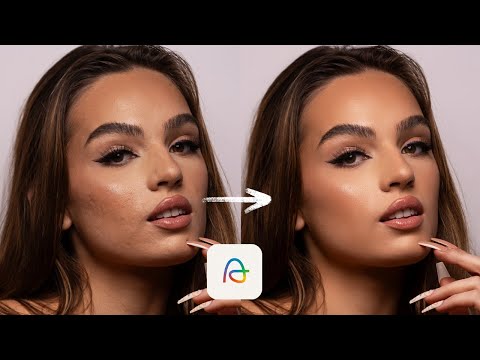 1:582:31Natural portrait retouching with AftershootManny demonstrates blemish removal, skin smoothing, and eye brightening on a client rebranding portrait using Aftershoot's feminine subject selection.Manny Ortiz
- 4:481:50Fashion skin retouching in AftershootThe video shows a more aggressive retouching workflow for a fashion edit, including maxing out blemish removal and adjusting skin smoothing masks.Manny Ortiz
- 9:581:11Male portrait retouching with AftershootManny switches the software to masculine mode to demonstrate subtle blemish removal and eye brightening on a male client portrait.Manny Ortiz
- 11:150:44Natural headshot touchup for menA demonstration of using Aftershoot to perform minimal, natural-looking touchups on a male construction worker's headshot.Manny Ortiz
- 12:041:01Shadowed face brightening and retouchingManny shows how to use the face brighten and blemish removal tools in Aftershoot on a client portrait shot in heavy shadow.Manny Ortiz