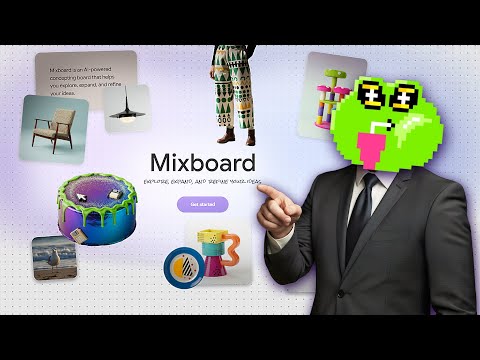
Generate professional outfits with Google Mixboard

 Mixboard
Demo summary
The user uploads a photo of a person and uses a text prompt to generate five different professional suit styles for that person using Google Mixboard.
Step-by-step
- Upload the photo you want to modify to the whiteboard
- Resize or reposition the image as needed
- Select the specific image on the whiteboard to ensure the AI knows which element to modify
- Enter a text prompt describing the desired professional outfit and background
- Press Enter to generate the variations
- Review the generated images and select your preferred style
Options
- Change specific details like glasses color, shoe color, or tie color
- Modify the jacket color specifically
- Request a specific number of variations (e.g., five images)
- Request a suitable background to match the outfit
Watch out for
- You must manually select the image on the whiteboard before entering the prompt, otherwise the tool will create a new image from scratch instead of modifying the existing one
Tips
- Use the 'Nano' model for the best results in image editing and modification
All demos from “جوجل بتفاجئنا من جديد… Mixboard أقوى أداة للخيال والإبداع 🔥”
- 2:051:51Generate professional outfits with Google MixboardCurrentThe user uploads a photo of a person and uses a text prompt to generate five different professional suit styles for that person using Google Mixboard.Mixboard· AI Clothing Try-on
- 4:030:32Edit specific image elements in MixboardThe demonstrator selects a generated image and uses a text prompt to change the color of a specific object (a handbag) while keeping the rest of the image intact.Mixboard· AI Inpainting
- Watch “جوجل بتفاجئنا من جديد… Mixboard أقوى أداة للخيال والإبداع 🔥” →
AI Clothing Try-on
- 2:051:51Generate professional outfits with Google MixboardCurrentThe user uploads a photo of a person and uses a text prompt to generate five different professional suit styles for that person using Google Mixboard.Infotech4you - مروي سليمان
 9:420:42Applying clothing items to a modelThe user generates individual clothing items and then uses a prompt to show a model wearing those specific accessories and garments together.Excelerator
 2:410:20Apply specific products to a person in MixboardThe user uploads an image of sunglasses and prompts Mixboard to generate images of a specific girl wearing those exact glasses.Tutorials For You