MailerLite: Selecting and editing email templates
 MailerLite
Demo summary
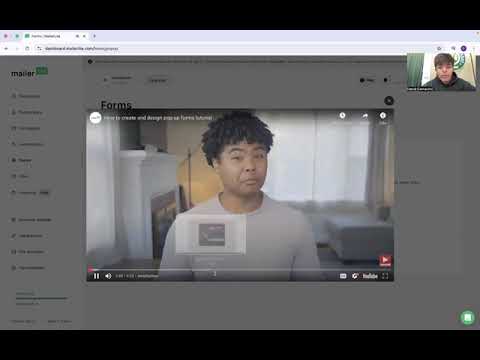
The video shows the campaign creation process, specifically selecting pre-made templates like a Black Friday sale and entering the editor to tailor the design.
Step-by-step
- Select the campaign type, such as a regular campaign
- Choose a pre-made template from the library
- Enter the editor to customize the design for your business
- Automate the campaign once the design is finalized
Options
- Create your own campaign from scratch
- Use specific themed templates like Black Friday sales
Highlights
“of technical skills as well... you're able to also edit and just make everything tailored on to you”
All demos from “MailerLite Demo”
- 1:110:20Importing subscribers to MailerLiteThe presenter demonstrates the subscriber management interface and explains how to upload an Excel sheet to import contact information into the system.MailerLite· Import / migrate contacts
- 1:590:29Creating popups and sign-up formsA walkthrough of the forms section showing how to create and edit popups to capture customer engagement.MailerLite· Add an opt-in popup
- 2:430:29Selecting and editing email templatesCurrentThe video shows the campaign creation process, specifically selecting pre-made templates like a Black Friday sale and entering the editor to tailor the design.MailerLite· Use / customize email templates
- 3:120:19Setting up email automation workflowsThe presenter navigates to the automation tab to show how to create workflows for welcome emails, retargeting, and birthday wishes.MailerLite· Build a welcome / drip automation
- Watch “MailerLite Demo” →
Use / customize email templates
- 2:430:29Selecting and editing email templatesCurrentThe video shows the campaign creation process, specifically selecting pre-made templates like a Black Friday sale and entering the editor to tailor the design.BrandLens Consulting