Why Keyframes Make Your Videos Look Professional | Filmora 15 Tutorial
YouTube ↗FFilmora for Creators·Feb 2026
Clips
 1:060:30Import and color grade background in Filmora 15The user demonstrates importing images into the media bin, placing them on the timeline, and adjusting color settings like vibrance, saturation, and exposure in Filmora 15.Filmora· AI Video Editor
- 1:360:37Positioning assets and setting anchor pointsThe narrator shows how to place a light asset on the timeline, adjust its scale, and move the anchor point to the end of the wire to ensure realistic rotation in Filmora 15.Filmora· AI Video Editor
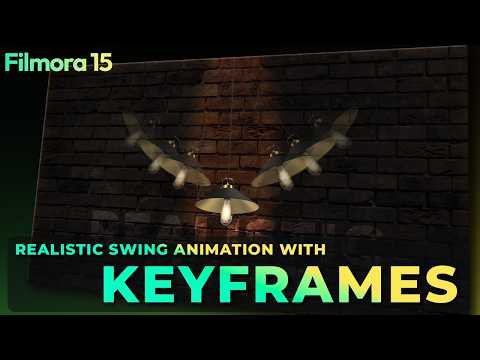
- 2:130:54Applying rotation keyframesThe user walks through placing the playhead at specific intervals and changing rotation values to create a swinging motion for the light asset.Filmora· AI Animation Generator
- 3:510:26Duplicating and varying animationsThe user demonstrates duplicating tracks, replacing assets via drag-and-drop, and modifying existing keyframes to create variation between multiple swinging lights.Filmora· AI Motion Graphics
- 4:240:15Applying cinematic filtersThe narrator shows how to navigate the filter folder, apply specific cinematic effects, and adjust their opacity in Filmora 15.Filmora· AI Video Editor