Navigating the Runway ML interface

 Runway
Demo summary
The presenter walks through the Runway ML dashboard, showing how to start a new session, select Stable Diffusion 2.0, and access the asset library for image generation.
Step-by-step
- Navigate to the Runway ML dashboard
- Click on Try it now to start a new session
- Select the Stable Diffusion 2.0 model
- Enter a text prompt
- Add reference images from the asset library or upload new ones
Options
- Use Stable Diffusion 2.0
- Upload custom reference images
- Select existing assets from your personal library
Watch out for
- Access to specific features may depend on your subscription plan (e.g., Unlimited plan)
Tips
- Use Stable Diffusion 2.0 as it is one of the most popular models for generation
All demos from “Runway Review 2026: Features, Pricing & Alternative”
- 2:230:46Navigating the Runway ML interfaceCurrentThe presenter walks through the Runway ML dashboard, showing how to start a new session, select Stable Diffusion 2.0, and access the asset library for image generation.Runway· AI Image Generator
- 7:241:39Creating UGC content with VidGuyThe user demonstrates the VidGuy (VidGen) interface by selecting a UGC template, choosing a character from the library, and using AI to refine a script for a social media video.VidGuy· AI UGC Video Generator
- 9:430:21Recreating videos from templates in VidGuyThe presenter shows how to use the 'recreate' feature in the Seed and Studio section to generate a new video by adding a reference image or website link to an existing template.VidGuy· Video to Video
- Watch “Runway Review 2026: Features, Pricing & Alternative” →

AI Image Generator
- 2:230:46Navigating the Runway ML interfaceCurrentThe presenter walks through the Runway ML dashboard, showing how to start a new session, select Stable Diffusion 2.0, and access the asset library for image generation.VidGuy
 11:081:35Multi-reference image generation with @ symbolsThe user demonstrates generating a complex image by uploading multiple references (lion, jaguar pattern, volcano) and using @ symbols in the prompt to assign specific roles to each reference.Skills Factory
 3:120:22Generate a 360-degree character rotation plateRunway's rotation plate node is shown generating a full turnaround of a character, allowing users to extract specific frames for different angles.Runway
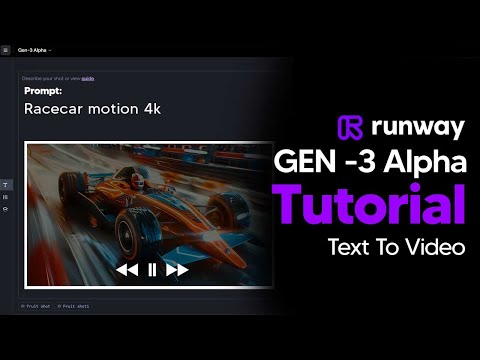 6:090:55Create and apply custom presets in RunwayThe user demonstrates creating a 'custom preset' by naming a prompt and saving it to a library for quick application in future Runway projects.TheAIGRID