EzRemove: Remove video watermarks with easyremove.ai
 EzRemove
Demo summary
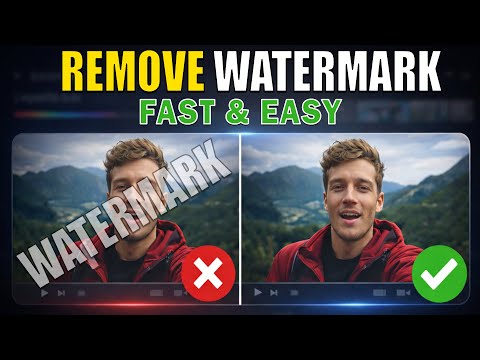
The creator demonstrates uploading a video to easyremove.ai, using the brush tool to mask a watermark, and processing the video to remove the unwanted element.
Step-by-step
- Upload your video to easyremove.ai
- Scroll through the video to locate the watermark
- Select the brush tool and adjust the brush size
- Brush over the watermark area
- Click on Remove Watermark
- Wait for the frame-by-frame processing to complete
- Review the video for any remaining watermarks
- Click Download to save the video in its original quality
Options
- Resize the brush tool for precision
- Repeat the brushing and removal process for multiple watermarks
Watch out for
- The removal area may appear blurry or distorted after processing
- Processing time depends on the length of the video as it works frame-by-frame
Tips
- Check the video after the first pass to see if any remaining watermark elements need a second brush-over
Highlights
“As you can see, the watermark is really completely removed.”
AI Video Editor
 5:441:18Remove video watermarks with Easy Remove AIThe video shows how to upload an AI-generated clip to Easy Remove AI, highlight the watermark area, and process it to get a clean video file.EPIC Mentorship
- 0:421:10Remove video watermarks with easyremove.aiCurrentThe creator demonstrates uploading a video to easyremove.ai, using the brush tool to mask a watermark, and processing the video to remove the unwanted element.Zeroverse