EzRemove: Remove video watermarks with Easy Remove AI

 EzRemove
Demo summary
The video shows how to upload an AI-generated clip to Easy Remove AI, highlight the watermark area, and process it to get a clean video file.
Step-by-step
- Navigate to easyremove.ai/video-watermark-remover
- Drag and drop your video file into the upload area
- Highlight the watermark area manually or wait for the tool to automatically select it
- Click on Remove Watermark for Free
- Preview the generated video to ensure the watermark is gone
- Click the download button to save the clean video file
Options
- Remove watermarks from images instead of videos
- Re-edit the selection if the initial removal isn't perfect
- Delete the processed file from the platform
Watch out for
- You must obey the specific resolution requirements stated on the upload page
Tips
- You can use the tool without logging into an account
Highlights
“this is very very interesting and this is next level in terms of the video creation”
All demos from “Generate AI Videos Free with Hunyuan AI (No Limits)”
- 5:441:18Remove video watermarks with Easy Remove AICurrentThe video shows how to upload an AI-generated clip to Easy Remove AI, highlight the watermark area, and process it to get a clean video file.EzRemove· AI Video Editor
- 7:020:30Remove image watermarks with Easy Remove AIThe user demonstrates the before-and-after results of using the image watermark remover tool on a JPEG generated by Hunyuan AI.EzRemove· AI Watermark Remover
- Watch “Generate AI Videos Free with Hunyuan AI (No Limits)” →
AI Video Editor
- 5:441:18Remove video watermarks with Easy Remove AICurrentThe video shows how to upload an AI-generated clip to Easy Remove AI, highlight the watermark area, and process it to get a clean video file.EPIC Mentorship
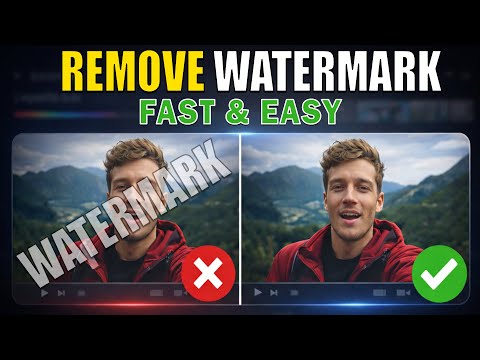 0:421:10Remove video watermarks with easyremove.aiThe creator demonstrates uploading a video to easyremove.ai, using the brush tool to mask a watermark, and processing the video to remove the unwanted element.Zeroverse