Camtasia Audiate: Create and preview an AI talking avatar
 Camtasia Audiate
Demo summary
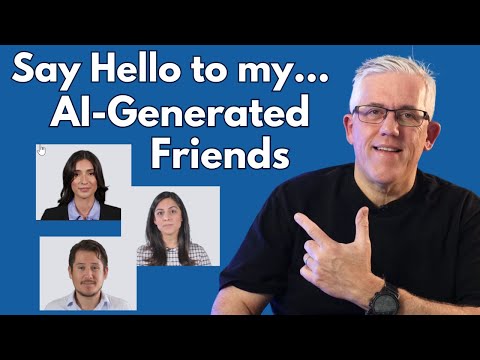
The user selects an avatar, chooses a square aspect ratio, and generates the video, showing the final result of the avatar speaking the script.
Step-by-step
- Select the preferred avatar from the available options
- Choose the aspect ratio (Landscape, Square, or Portrait)
- Click to generate the avatar
- Preview the generated video to hear the avatar speak the script
Options
- Edit the avatar
- Remove the background
Watch out for
- Generation time can be significant; the clip notes a 14-15 minute wait for a single avatar
All demos from “How to Create an AI Generated Avatar Using Audiate”
- 4:200:47Create and preview an AI talking avatarCurrentThe user selects an avatar, chooses a square aspect ratio, and generates the video, showing the final result of the avatar speaking the script.Camtasia Audiate· AI Avatar Video Generator
- 5:070:34Exporting avatar video from AudiateThe demonstration shows how to configure export settings including file format, frame rate, and quality, as well as the option to send the project directly to Camtasia.Camtasia Audiate· AI Video Editor
- Watch “How to Create an AI Generated Avatar Using Audiate” →
AI Avatar Video Generator
 1:252:11Generate an AI avatar from text in TechSmith AudiateThe presenter demonstrates the workflow in Audiate by pasting text, selecting a language, choosing a voice character (Andrew), adjusting speed and pitch, and selecting a visual avatar (Louise) to generate a video.The Paul Wilson Project
- 3:530:22Previewing AI avatar video outputA live preview of the generated AI avatar is shown where the character speaks the provided script about household waste disposal.The Paul Wilson Project
- 4:200:47Create and preview an AI talking avatarCurrentThe user selects an avatar, chooses a square aspect ratio, and generates the video, showing the final result of the avatar speaking the script.Learning and Technology with Frank