Switching to Sonauto V3 model

 Sonauto
Demo summary
The creator demonstrates how to navigate the UI to select the V3 model and choose between simple and advanced prompting modes in Sonauto.
Step-by-step
- Locate the model selection menu
- Select the V3 model
- Choose between Simple or Advanced prompting modes
Options
- Toggle between Simple and Advanced prompting modes
All demos from “The AI Music Tool That's About to Break the Internet (And It's Free Right Now)”
- 2:410:12Switching to Sonauto V3 modelCurrentThe creator demonstrates how to navigate the UI to select the V3 model and choose between simple and advanced prompting modes in Sonauto.Sonauto· AI Song Generator
- 10:330:26Editing tracks in SonautoThe narrator shows the edit function in Sonauto, explaining the limitation where attempting to replace a section currently reverts the model to version 2.Sonauto· AI Audio Editor
- 12:130:23Advanced prompting and extreme values in SonautoThe creator walks through the advanced tab settings, demonstrating sliders for lyric and style strength, duration control, and the 'enable extreme values' toggle.Sonauto· AI Song Generator
- Watch “The AI Music Tool That's About to Break the Internet (And It's Free Right Now)” →
AI Song Generator
 5:401:05Generate German dark pop music with SonautoThe user demonstrates the Sonauto interface by entering specific tags like '1990s', 'dark pop', and 'German lyrics' into the advanced tab to generate a new track.Oprelia AI
 0:370:54Generate music with Simple Mode in Sonauto AIThe user demonstrates entering a text prompt for a pop electronic track and clicking generate to produce two song variations in Sonauto AI.Artificial Quotient
- 2:590:45Custom lyrics and tags in Advanced ModeThe narrator walks through pasting custom lyrics and selecting specific style tags to shape a song's genre and instrumentation in Sonauto AI.Artificial Quotient
- 3:440:44Extend song length and replace lyricsThe user demonstrates clicking the 'Extend' option to add new sections to a track and shows how to replace specific lyrics with new ones.Artificial Quotient
 3:562:56Generate a 50 Cent style hip-hop song in SonautoThe creator navigates to the 'make music' section of Sonauto, enters a prompt for a '50 Cent hip-hop song' with 'Timberland 2000s' tags, and generates a track to evaluate the vocal quality and beat production.Busy Works Beats
- 8:382:00Using custom lyrics and tags in Sonauto Advanced ModeThe creator demonstrates the advanced interface of Sonauto, attempting to paste custom lyrics while selecting specific genre tags like 'hip-hop', 'rap', and 'boom bap' to control the output.Busy Works Beats
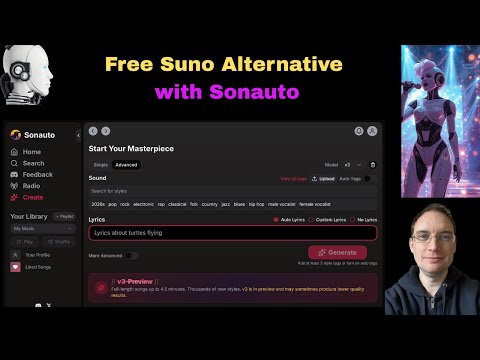 0:541:54Generate AI music with Sonauto Advanced modeThe user navigates to the Advanced mode in Sonauto, enters style tags like 'male vocalist', 'pop', and 'metal', and adjusts the lyrics and style strength sliders before generating a track.Music Tech Info
- 3:590:54Refining prompts and downloading stems in SonautoThe demonstrator modifies the prompt to 'energetic pop', generates new tracks, and shows how to download the full WAV file and individual instrument stems from the edit menu.Music Tech Info
- 8:400:59Using specific artist tags in SonautoThe user types a specific artist name into the tag field to demonstrate how the model's training data influences the output style and generates a new track based on that tag.Music Tech Info
- 14:470:55Exploring the Sonauto Tag GraphThe demonstrator opens the 'view all tags' list and the 'show tag graph' to visualize how different musical genres and styles are mapped and connected within the Sonauto model.Music Tech Info
 1:461:11Generate and download rock music with SonautoThe creator demonstrates entering a prompt for a rock song with specific lyrics into Sonauto, showing how the tool generates multiple genre-tagged variations and allows for free file downloads.Lidori
 0:100:13Generate music with Sonauto AI Simple ModeThe narrator demonstrates entering a text description for an upbeat pop song and clicking generate to produce multiple song versions in Sonauto AI.How To Thomas