Isolating vocals and background music in HitPaw Edimakor
 HitPaw Edimakor
Demo summary
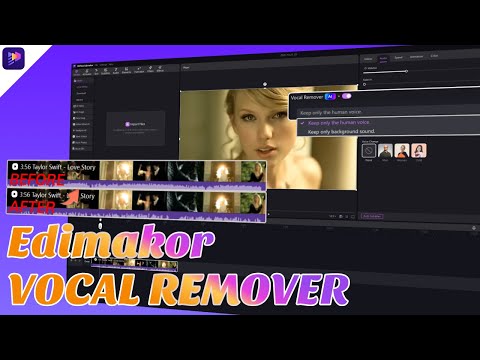
The narrator demonstrates how to navigate to the toolbox, upload an audio file, and toggle the vocal remover settings to isolate either human sound or background music. They also show how to apply noise reduction and access the tool via a right-click shortcut on the timeline.
Step-by-step
- Open HitPaw Edimakor and navigate to the Toolbox section
- Select Vocal Remover under the Audio category
- Upload your audio file via the file explorer
- Click the Enable button next to Vocal Remover in the right panel
- Select either Keep background sound or Keep human sound
- Click the Noise Reduction button to manage soundtrack disruptions
Options
- Access the Vocal Remover by right-clicking a selected audio track on the timeline
All demos from “How to Remove Vocals from ANY Song with Vocal Remover AI | Edimakor Vocal Remover Tutorial”
- 0:280:52Isolating vocals and background music in HitPaw EdimakorCurrentThe narrator demonstrates how to navigate to the toolbox, upload an audio file, and toggle the vocal remover settings to isolate either human sound or background music. They also show how to apply noise reduction and access the tool via a right-click shortcut on the timeline.HitPaw Edimakor· AI Vocal Remover & Stem Splitter
- 1:230:18Exporting processed audio in HitPaw EdimakorThe user walks through the export process, showing how to select preferences like format, resolution, and bitrate before saving the final file to the computer.HitPaw Edimakor· AI Video Editor
- Watch “How to Remove Vocals from ANY Song with Vocal Remover AI | Edimakor Vocal Remover Tutorial” →
AI Vocal Remover & Stem Splitter
- 0:280:52Isolating vocals and background music in HitPaw EdimakorCurrentThe narrator demonstrates how to navigate to the toolbox, upload an audio file, and toggle the vocal remover settings to isolate either human sound or background music. They also show how to apply noise reduction and access the tool via a right-click shortcut on the timeline.Edimakor for Creators