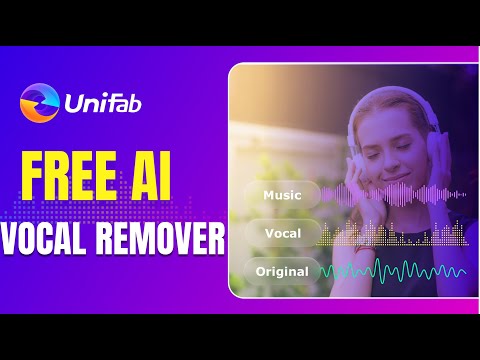
Separate vocals and instrumentals with UniFab Vocal Remover
 Unifab
Demo summary
The narrator demonstrates the UniFab UI, selects the Vocal Remover tool, imports an audio file, configures output settings, and runs the AI separation process. The clip concludes by importing the resulting tracks into Adobe Audition to verify the separation quality.
Step-by-step
- Select Vocal Remover from the Free AI section on the left sidebar
- Click Import Audio in the center of the interface
- Modify the file name if desired
- Select the Output Track (Background, Vocal, or everything)
- Choose the output format
- Click Start to begin the AI processing
- Import the resulting files into a DAW like Adobe Audition to verify results
Options
- Export only the background music
- Export only the vocals
- Export both background and vocals simultaneously
Highlights
“the software is very simple the left side of the software clearly shows the functions of each AI”
AI Vocal Remover & Stem Splitter
- 0:401:49Separate vocals and instrumentals with UniFab Vocal RemoverCurrentThe narrator demonstrates the UniFab UI, selects the Vocal Remover tool, imports an audio file, configures output settings, and runs the AI separation process. The clip concludes by importing the resulting tracks into Adobe Audition to verify the separation quality.UniFab