Multi-track editing in Mureka Studio
 Mureka
Demo summary
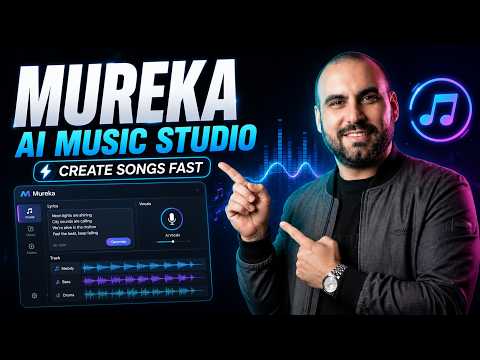
The demonstration covers the Mureka Studio interface, showing how to stack multiple soundtracks, record live vocals over a track, and adjust volume and instrument settings for drums and bass.
Step-by-step
- Open the Studio interface to access the multi-track editor
- Click the add button to stack new soundtracks to the project
- Select the microphone input from the settings to enable live recording
- Press the record button to capture vocals while the music plays
- Adjust individual track settings such as volume, mute, and panning (left/right)
- Assign specific instrument types like drums, bass, or guitar to tracks
- Customize track colors to organize the workspace
- Input lyrics into the lyrics field and click done to generate based on settings
Options
- Duplicate tracks
- Enable 'Follow Track Tempo'
- Delete tracks
- Toggle between left and right audio channels
Watch out for
- Recording live vocals is not recommended for songs that already have a vocal track unless recording a secondary harmony
Tips
- Use the recording feature primarily for instrumental songs you have created
- Customize track colors to avoid getting disoriented once you add a large number of soundtracks
- Use the built-in Studio instead of external software to sync and stack tracks directly
Highlights
“it's a robust system”
All demos from “How to Make AI Music with Mureka (Studio & Video Guide)”
- 0:493:24Generate custom AI music with MurekaThe user demonstrates the 'Custom' creation mode in Mureka, uploading a video reference, selecting a vocal character named Andreo, and using the 'Optimize' tool to generate song lyrics about Tijuana City.Mureka· AI Song Generator
- 4:290:53Configure music style and tagsThe narrator shows how to select musical styles like 'melodic trap' and 'progressive trance' and add custom tags like 'deep bass' before generating the final tracks.Mureka· AI Music Generator
- 10:050:59Create an AI music videoThe user walks through the video creation tool, selecting a song, choosing a dog character, setting a 'synth wave' visual style, and configuring the aspect ratio for a vertical video.Mureka· AI Music Video Generator
- 11:301:43Multi-track editing in Mureka StudioCurrentThe demonstration covers the Mureka Studio interface, showing how to stack multiple soundtracks, record live vocals over a track, and adjust volume and instrument settings for drums and bass.Mureka· AI Audio Editor
- Watch “How to Make AI Music with Mureka (Studio & Video Guide)” →
AI Audio Editor
- 11:301:43Multi-track editing in Mureka StudioCurrentThe demonstration covers the Mureka Studio interface, showing how to stack multiple soundtracks, record live vocals over a track, and adjust volume and instrument settings for drums and bass.SaaS Master
 6:072:50Edit stems in Mureka StudioThe user demonstrates Mureka's Studio mode by extracting stems from a track, performing DAW-style edits like deleting and pasting sections, and exporting the multi-track files.MoneOnDaBeat
 5:570:27Edit music stems in Mureka StudioThe video shows the Studio interface where the user interacts with individual stems like vocals, bass, and drums to adjust tempo and regenerate sections.Create With AI (Zero to AI Hero)
 8:100:37Adjusting speed and pitch in MurekaThe user demonstrates Mureka's built-in tools for slowing down audio and transposing the key of a track for practice purposes.Jorge Albuquerque