Upscale video to 4K with AnyEnhancer

 AnyEnhancer
Demo summary
The user demonstrates the AnyEnhancer interface, showing how to upload a low-quality sample video and select enhancement models like 'Smart Enhancement' or 'Face Correction' to achieve 4K resolution.
Step-by-step
- Launch AnyEnhancer and upload your video file to the main interface.
- Select an enhancement model such as 'Smart Enhancement', 'Super Resolution', or 'Face Correction'.
- Use the scissors icon to cut the video length if the file is too long.
- Use the trimming tool to crop the frame if you want to focus on a specific area like a face.
- Click the preview button and select a duration of 3 or 5 seconds to generate a sample.
- Download the upscaled video once the processing is complete.
Options
- Smart Enhancement for a balanced overall improvement to 2K/4K.
- Super Resolution for sharpening landscapes and scenery.
- Face Correction for videos focused on people.
- Black and White Colorization to add color to old footage.
- Color Enhancement, Noise Removal, or Frame Rate boosting.
Watch out for
- Upscaling requires a paid subscription to download the final video.
- Longer videos, such as movies, take significantly more time to process.
- You cannot download the full video to check quality without using the preview function first.
Tips
- If you are unsure which model to choose, start with 'Smart Enhancement'.
- Use the 5-second preview option to get a better sense of the enhancement quality.
- Use the cut tool for long videos to save processing time.
Highlights
“使い方簡単でここに動画をアップロードするだけ”
AI Video Upscaler
 4:210:51Configure video enhancement settings in AnyEnhancerThe user imports a low-quality b-roll clip into the AnyEnhancer app and selects settings for 4K upscaling, face restoration, color enhancement, and 4X frame rate interpolation.Digital Product Wizard
- 5:120:59Preview AI video upscaling and face restorationThe AnyEnhancer tool processes a 3-second preview of the footage, showing a side-by-side comparison of the original blurry video versus the AI-enhanced version with clearer facial details.Digital Product Wizard
- 6:110:30Exporting enhanced video from AnyEnhancerThe user demonstrates the export process in AnyEnhancer, selecting the output format (MP4, MOV, WebM, or FLV) and saving the final rendered 4K file to the desktop.Digital Product Wizard
- 1:491:36Upscale video to 4K with AnyEnhancerCurrentThe user demonstrates the AnyEnhancer interface, showing how to upload a low-quality sample video and select enhancement models like 'Smart Enhancement' or 'Face Correction' to achieve 4K resolution.AI様の下僕
 3:440:48Upscale video to 4K with Intelligent EnhancementThe video shows the process of using AnyEnhancer's Intelligent Enhancement model to simultaneously perform facial restoration and upscale a 1080p video to 4K resolution.VideoEditOz
 1:381:44Upscale and sharpen blurry faces with AnyEnhancerThe creator uploads a blurry video clip to AnyEnhancer and uses the 'Intelligent Enhancement' model at 2K resolution to sharpen facial features and improve overall clarity.Michelle The Creator
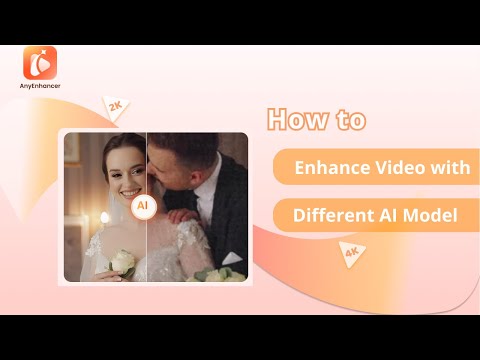 0:411:02Upscale video resolution with Intelligent EnhancementThe video demonstrates using AnyEnhancer's Intelligent Enhancement model to refine facial details and upscale video resolution to 2K or 4K.iMobie Support
- 1:430:59Increase video clarity with Resolution EnhancementAnyEnhancer is shown processing low-resolution footage to increase clarity and detail using its dedicated Resolution Enhancement AI.iMobie Support
 0:111:45Enhance video resolution with AnyEnhancerThe video demonstrates how to upload a file to AnyEnhancer, select the Resolution Enhancement AI model, preview the side-by-side comparison, and export the final upscaled video.iMobie Support
 1:380:46Previewing and exporting upscaled video in AnyEnhancerThe video shows the process of previewing the AI enhancement, selecting output formats, and exporting the final high-resolution video file.Cero